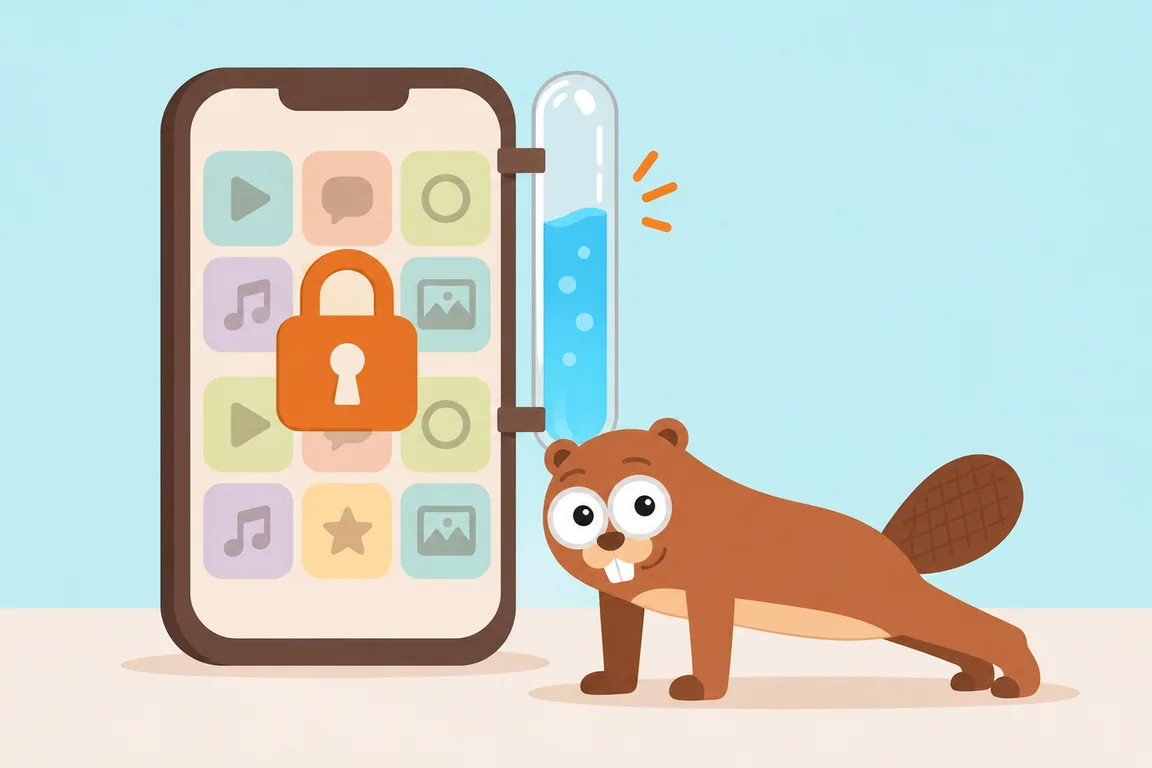
iOS 27 renamed the tools: App Limits are now Time Allowances, and Downtime is a Screen Time Schedule. Here are the new steps, the old ones for iOS 26, and where each method gives way.
Michael TournaudFounder of PushtankUpdated 21 November 2026Steps checked against Apple’s iOS 27 guide
This guide is in English only for now.
Illustration, not a screenshot.
Short answer
To block apps on iPhone with iOS 27, open Settings, › Screen Time, › Time Allowances and set a daily allowance for the category the app is in: Social Media, Entertainment or Games. Use a Screen Time Schedule for set hours. Then lock both with a Screen Time passcode, or a limit is one tap from undone.
Each guide has the steps for that app, its own built-in limits, and the ways people get round them. The line under each name is the thing worth knowing first.
Every method comes down to one question: what does it cost you to get past it at 11 p.m.? Apple’s Screen Time is free, already installed and the right place to start. Its weak point is in Apple’s iOS 26 guide: “By default, Screen Time limits can be ignored once reached.” For macOS 27, Apple describes the Screen Time passcode as what’s needed “to allow more time when limits expire”. Without one, a limit is a reminder.
Block apps with Time Allowances
In iOS 27, a Time Allowance is a daily budget for a category of apps. Apple sorts apps into Entertainment, Games and Social Media “based on their social media capabilities and App Store category”, and you can add more categories. If an app declares its website, the allowance covers the website too.
Set a Time AllowanceSettings app · iPhone or iPad · iOS 27
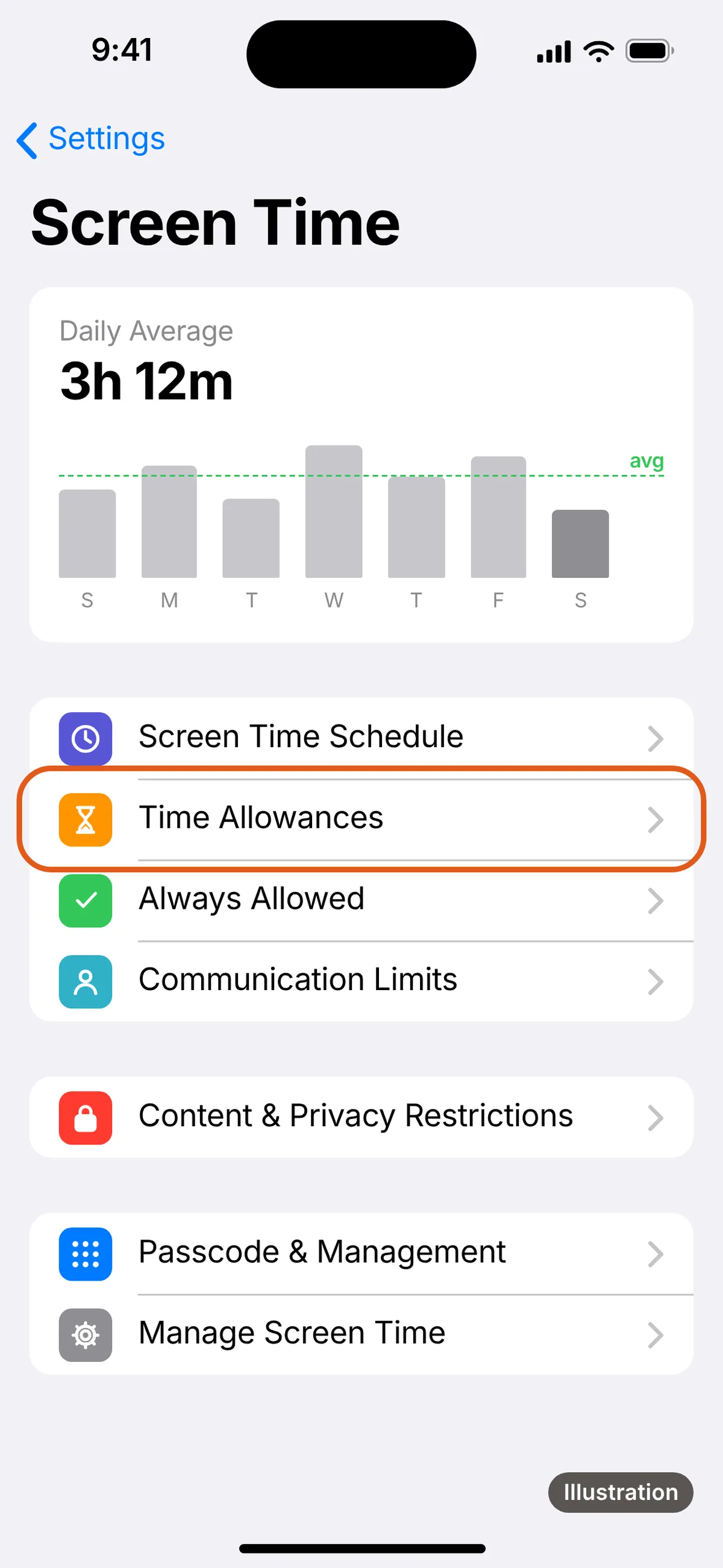
1Open Settings, › Screen Time, › Time Allowances. If Screen Time is off, tap Turn On App & Website Activity.
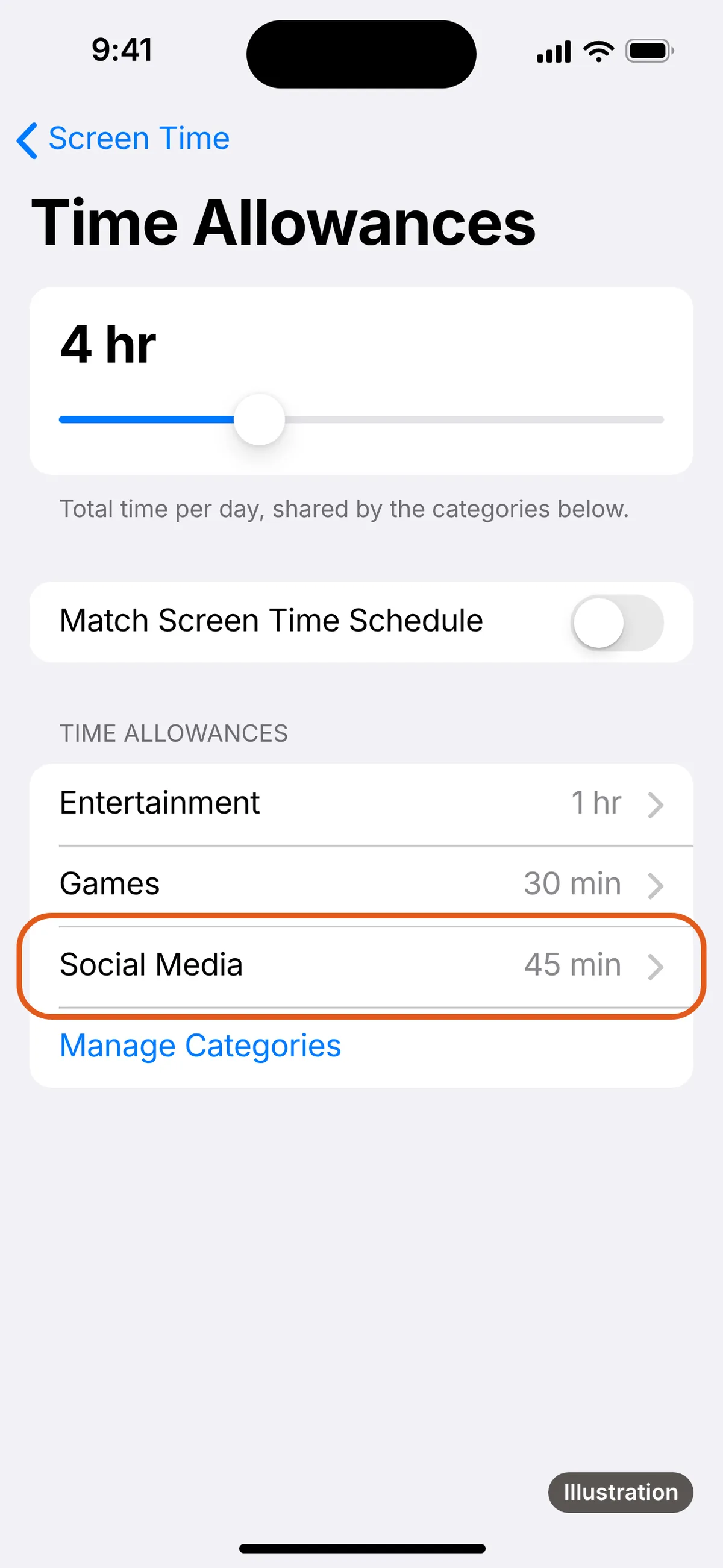
2Drag the top slider to set your daily total across all categories.
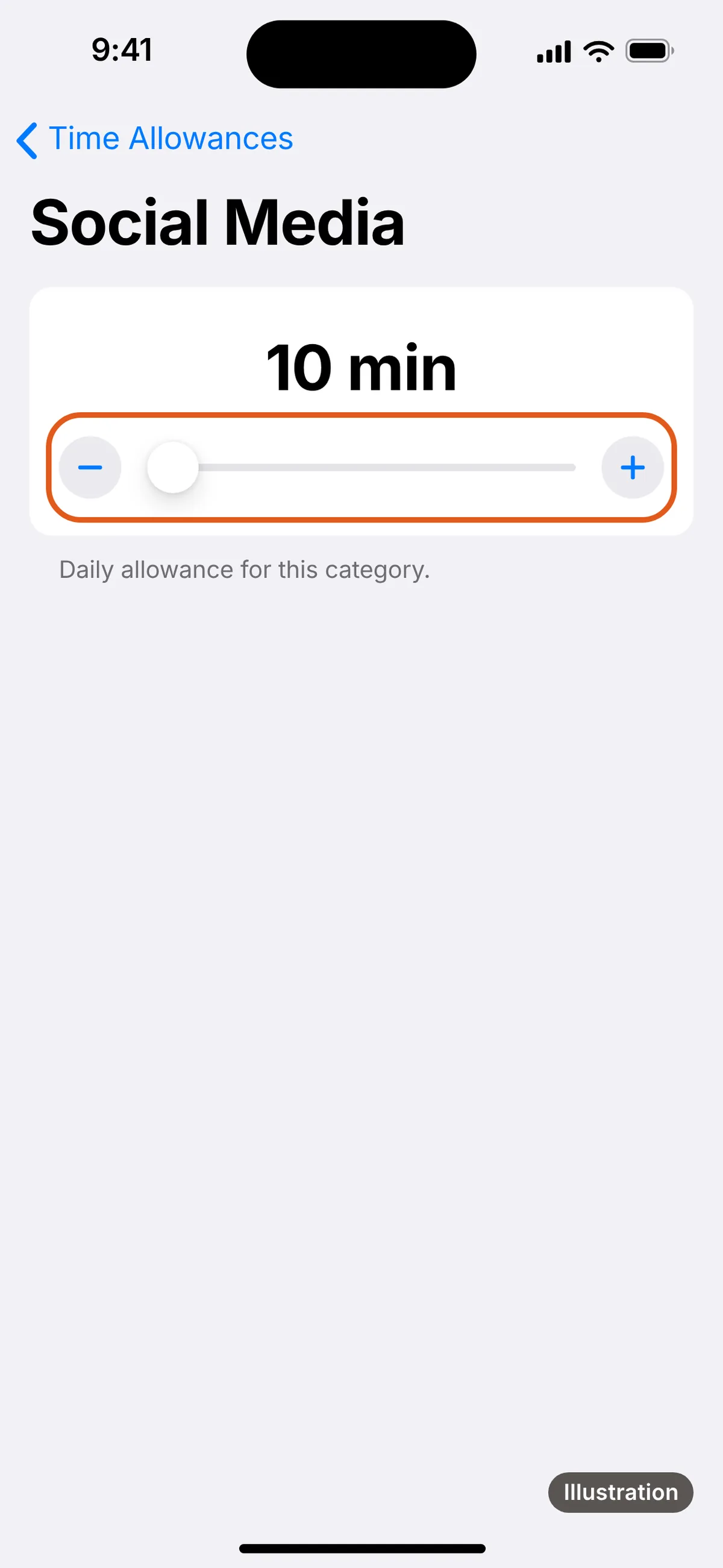
3Under Time Allowances, tap a category, such as Social Media, and drag its slider down. Ten minutes is a block in all but name.
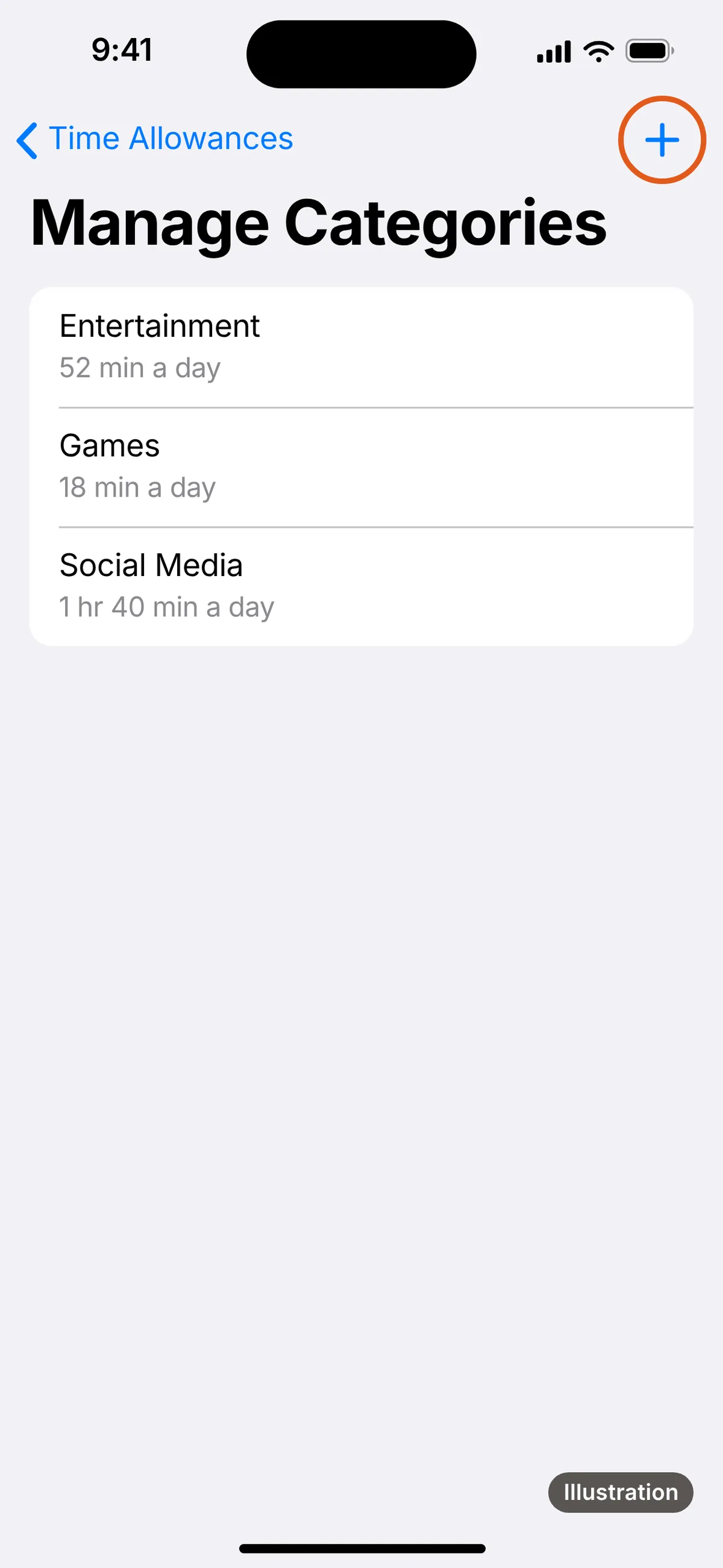
4Missing a category? Tap Manage Categories, tap the Add button, then choose one.
1Illustration of the iOS 27 Screen Time screen — recreated, not a screenshot
2Illustration of the iOS 27 Time Allowances screen — recreated, not a screenshot
3Illustration of the iOS 27 Social Media allowance screen — recreated, not a screenshot
4Illustration of the iOS 27 Manage Categories screen — recreated, not a screenshot
1Open Settings, › Screen Time, › App Limits, then tap Add Limit.
2Select a category, or tap its name to choose single apps.
3Tap Next and set the time; Customize Days sets each day separately.
4Tap Done.
One app, not a whole category?
Apple’s iOS 27 guide describes allowances by category only. On iOS 26 and earlier, App Limits can target a single app (switch the tab above). Each app guide says which App Store category its app is filed under.
Block apps at set hours
A Screen Time Schedule (Downtime before iOS 27) splits the day into time windows, each with its own allowances. Apps and contacts in Always Allowed stay available whatever the schedule says.
Add a scheduleSettings app · iOS 27
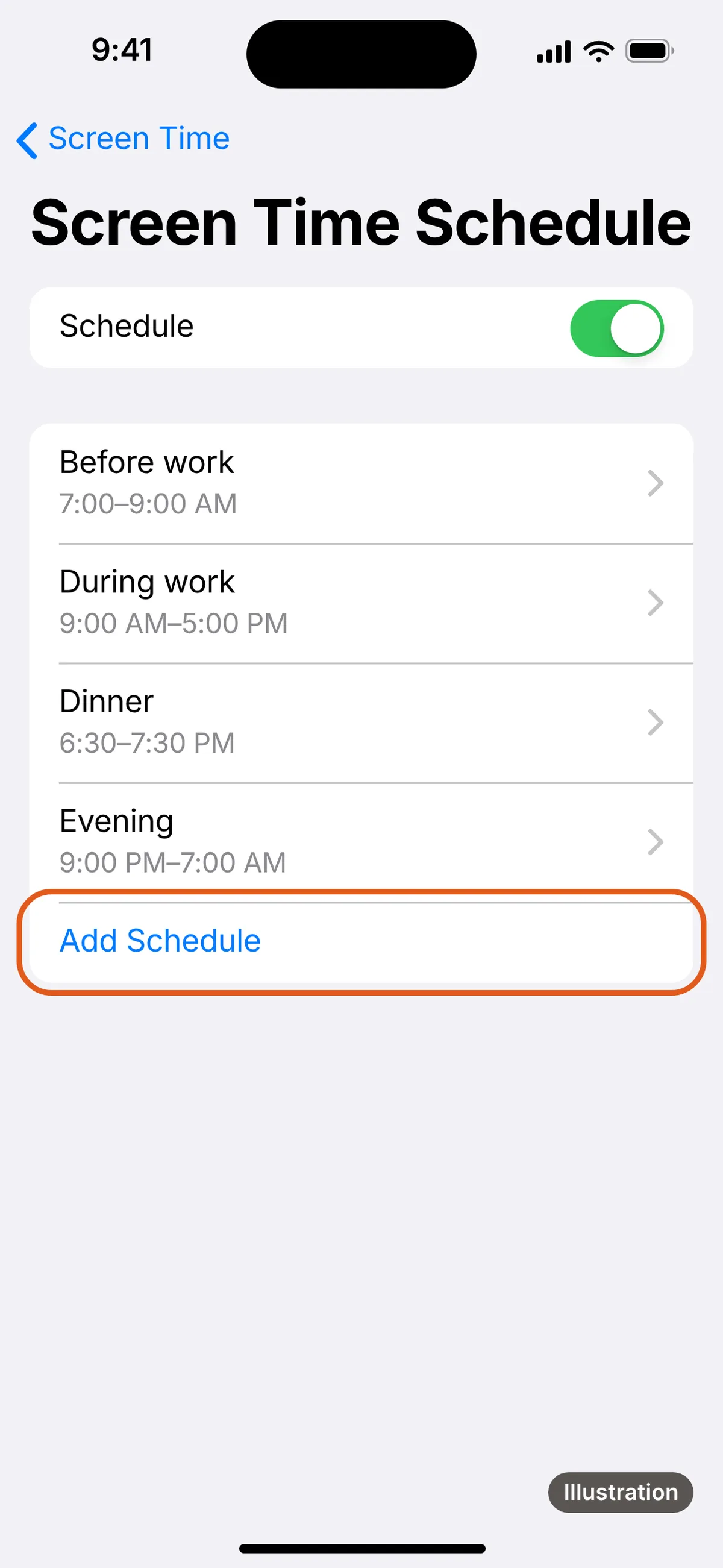
1Open Settings, › Screen Time, › Screen Time Schedule and turn on Schedule.
2Tap Add Schedule, choose the days, then tap Done.
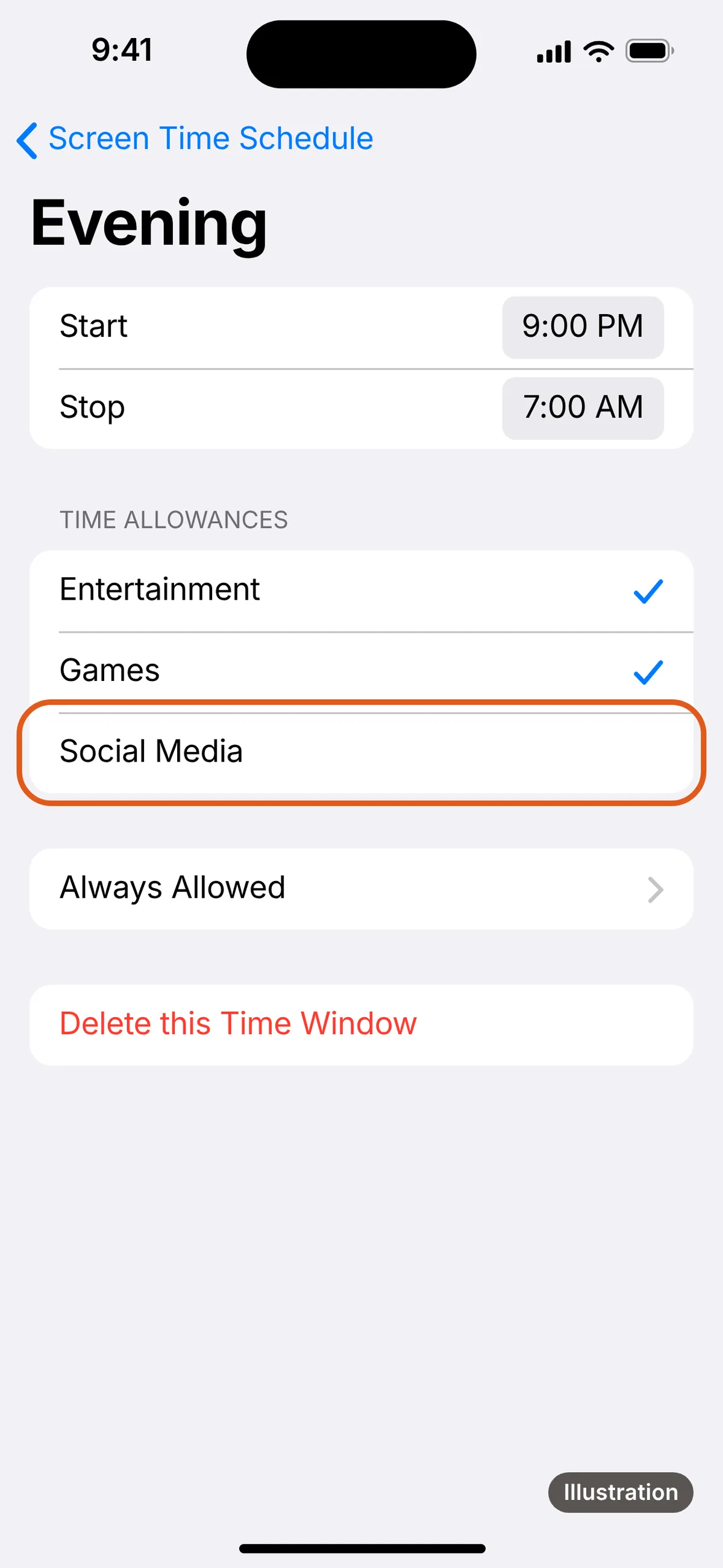
3Tap a time window, such as Evening, to set its start and stop times and pick the categories allowed in it.
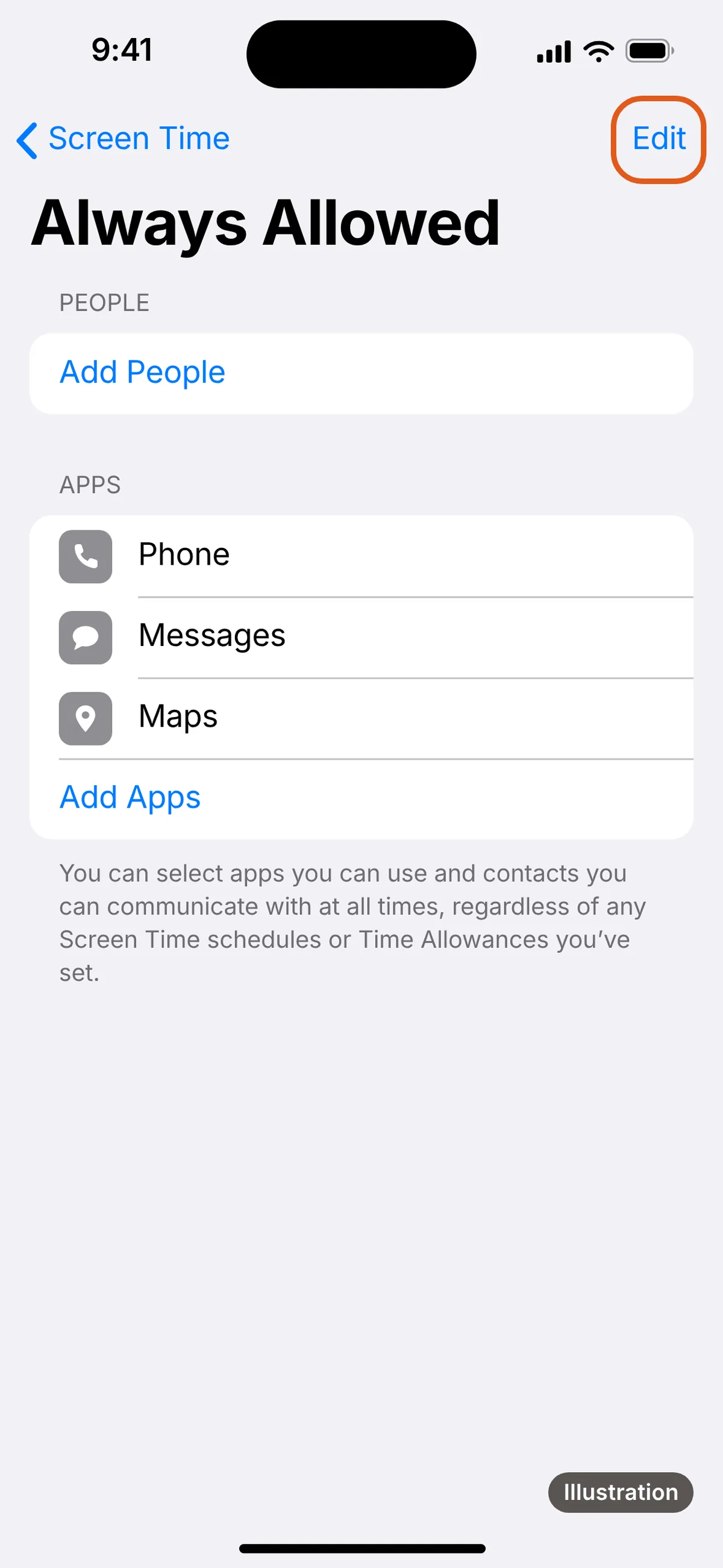
4Tap Always Allowed and remove the apps you don’t want at night. Keep Phone and Messages for emergencies.
2Illustration of the iOS 27 Screen Time Schedule screen — recreated, not a screenshot
3Illustration of the iOS 27 Evening time window screen — recreated, not a screenshot
4Illustration of the iOS 27 Always Allowed screen — recreated, not a screenshot
1Open Settings, › Screen Time, › Downtime, then tap Scheduled.
2Choose Every Day or Customize Days and set the start and end times.
3With a Screen Time passcode set, turn on Block at Downtime: apps then “can’t be opened during downtime”.
Make the block hold
A limit you can change in Settings is a reminder, not a block. Two settings make it stick.
Lock Screen Time with a passcode, and let someone else choose it
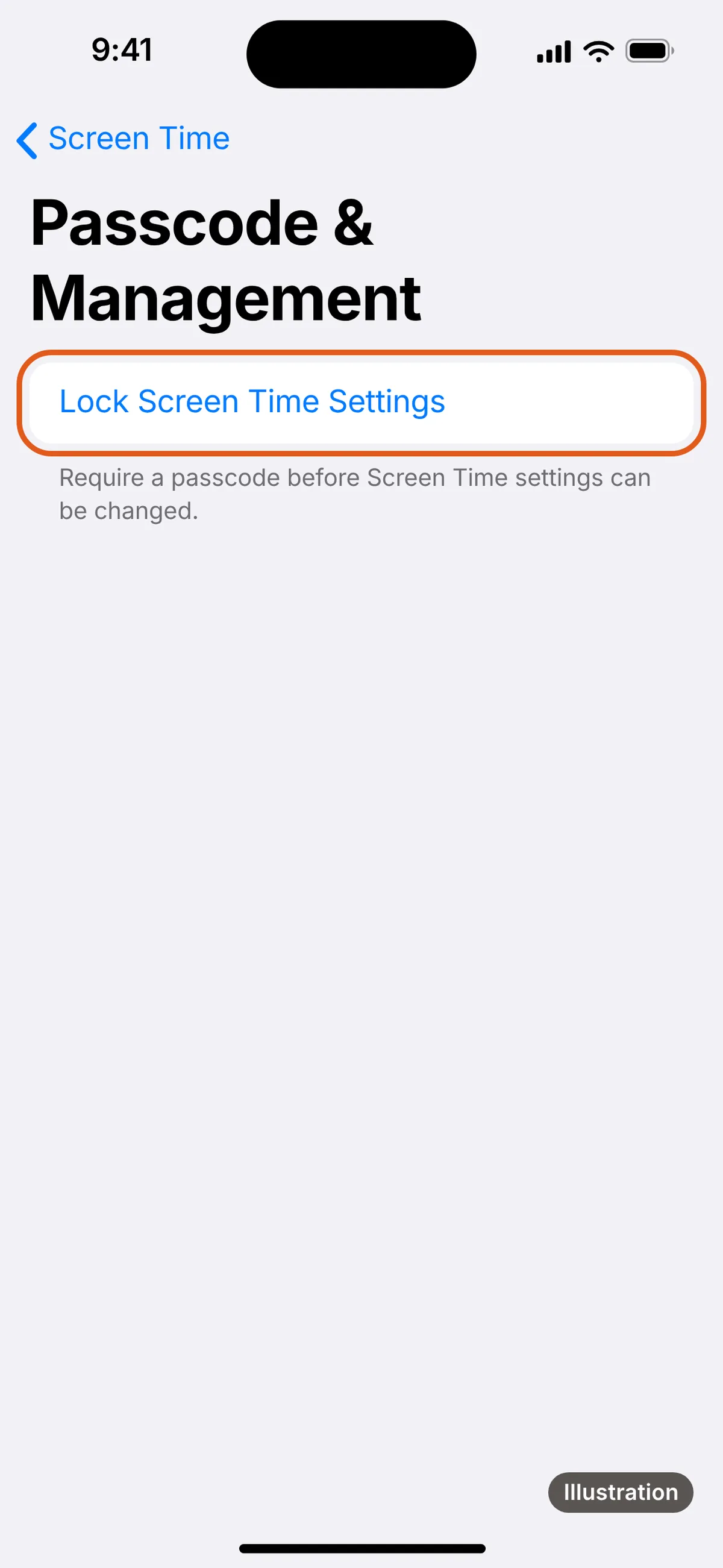
Go to Settings, › Screen Time, › Passcode & Management, › Lock Screen Time Settings and enter a four-digit code. Changing your limits then asks for it. A code you chose yourself will come back to you at 11 p.m. On iOS 26, Lock Screen Time Settings sits directly in Screen Time.
Illustration of the iOS 27 Passcode & Management screen — recreated, not a screenshot
Stop the app coming back
Deleting and reinstalling an app leaves your account intact, so lock installs too. On iOS 27, Apple documents Screen Time, › Apps & Websites, › Restrictions, › Deleting Apps on your own iPhone: set it so deleting isn’t allowed. Installing is a setting in the App Store part of Screen Time, › Apps & Websites; Apple names it for a child’s iPhone only, so check it on yours. On iOS 26, it’s Content & Privacy Restrictions, › iTunes & App Store Purchases, where you can restrict installing and deleting apps.
On iOS 26 or earlier
Families only move to the new controls once every device used in the last 90 days runs iOS 27, and devices that can’t update keep the old Screen Time. So many iPhones still show App Limits and Downtime: each set of steps above has an “iOS 26 or earlier” tab with Apple’s iOS 26 wording.
Why the iOS 26 limits are easier to ignore
Apple’s iOS 26 guide: “By default, Screen Time limits can be ignored once reached.”
Its fix is Block at Downtime, which needs a Screen Time passcode: without it, “you see a reminder that it’s downtime, but you can choose to continue using the apps.”
So on iOS 26, a limit without a passcode is a reminder. The same advice holds on iOS 27: lock it with a code you don’t hold.
On iPad
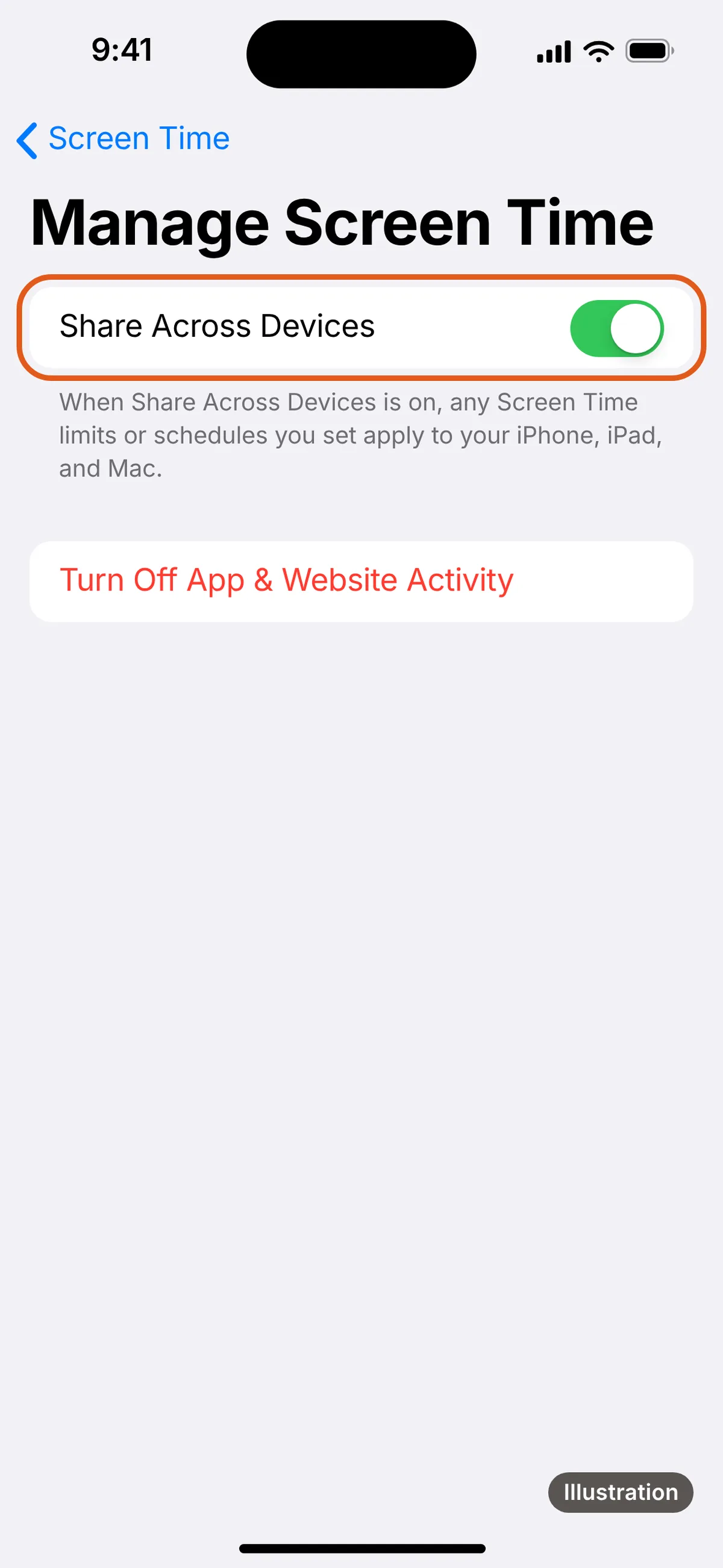
Same steps, same labels: Apple’s iPad guide for iPadOS 27 matches the iPhone one. With one Apple Account on both, turn on Screen Time, › Manage Screen Time, › Share Across Devices and your schedule and allowances apply to iPhone, iPad and Mac. Some apps’ own tools don’t follow: YouTube’s break and bedtime reminders are set in the app on a phone, not on an iPad.
Illustration of the iOS 27 Manage Screen Time screen — recreated, not a screenshot
Which method holds?
The test isn’t how hard a method is to set up. It’s what it takes to get past it when you’re tired. Pushtank doesn’t win every row.
Method
To get past it at 11 p.m.
Other devices
What you give up
Screen Time limit, no passcodeSet-up: 2 min
Raise or delete the allowance in Settings. Apple’s iOS 26 guide: “By default, Screen Time limits can be ignored once reached.”
Yes, with Share Across Devices
Nothing, which is why it rarely holds
Screen Time limit + a passcode someone else choseSet-up: 5 min, plus a willing person
Ask them for the four digits
Yes, with Share Across Devices
Asking someone each time; they hold your settings
Screen Time ScheduleSet-up: 3 min
Same as a limit: only a passcode makes it stick
Yes, with Share Across Devices
Every app outside Always Allowed, during those hours
The app’s own daily limitSet-up: 1 min
Change it in the app, often with a code it shows you
Follows your account in that app
Nothing; it’s a nudge
A blocker app with a wait or a passwordSet-up: 5 min
Sit out the countdown or type the password; or delete the blocker
Usually this device only
Often a subscription; the password is yours, so it fades
Deleting the appSet-up: 10 s
Reinstall it; your account is still there
No
The app entirely, until you reinstall it
PushtankSet-up: 5 min
A set of push-ups, or 10 min borrowed that you repay. The real escape hatch: deleting Pushtank lifts every block
Pushtank shields apps through the same Screen Time framework, with one change: its block screen has no button to ignore the limit. The apps you pick stay open while your tank holds time, and exercise fills it. When it runs dry, they close until you do a set.
1Pick the apps, in groups. Each group drains the tank at its own rate.
2Prop the phone up and do push-ups, squats, plank, or sit-ups, counted by the camera. At the starting rate, one push-up adds 1 min.
3Use the apps. Only the minutes you actually spend in them come out of the tank.
per push-up, at the starting rate
1 min
the most a tank holds
3 h
you can borrow, and repay
10 min
Pushtank’s block screen, word for word
Tank empty
One set of push-ups and this app reopens. No lecture, just the trade.
Do push-upsBorrow 10 min
What it doesn’t do. Pushtank blocks apps, not websites: it doesn’t block anything in Safari, so block the website with Screen Time as well. It’s iPhone only for now. Blocking, the tank and every exercise are free; the only purchase is for opening a duel against someone. And deleting Pushtank lifts every block it set.
Five minutes of credit when you install. No account, no email.
How many push-ups a day is reasonable? The push-ups per day calculator gives a starting number for your level.
Questions
Where did App Limits go in iOS 27?
They became Time Allowances, under Settings, › Screen Time, › Time Allowances. Apple’s iOS 27 guide sets them by category. Devices that can’t update keep the iOS 26 App Limits.
Can I block one app instead of a whole category?
Apple’s iOS 27 guide only describes allowances by category, and it sorts apps by their “social media capabilities and App Store category”. On iOS 26 and earlier, App Limits can target a single app. Each app guide says which App Store category its app is filed under.
How do I block apps on my own iPhone, not a child’s?
Use the steps above on your own iPhone. On iOS 27, children are managed from Settings › Family instead. The real difference is who holds the Screen Time passcode.
Does a limit on an app also block its website?
On iOS 27, only if the app declares its website to Apple: “If an app has an associated website it declares, the Time Allowance applies to both.” To be sure, block the address too.
What’s the difference between hiding, locking and blocking an app?
Hiding moves an app to a Hidden folder, locking puts it behind Face ID, and blocking stops it opening. Only blocking limits your time: anyone who can unlock the phone can open a locked app.
Is there a free app blocker for iPhone?
Screen Time: free and already installed. Pushtank is free as well, and adds a different price: a set of push-ups when your tank is empty. Only opening a duel is paid.
How this guide is checked: each menu label is copied from Apple’s iPhone User Guide for iOS 27 (current release iOS 27.2.1, 9 November 2026), read on 21 November 2026, and the iOS 26 wording from Apple’s iOS 26 guide. The phone screens are recreations drawn from Apple’s wording, not screenshots, and the illustrations are labelled as illustrations.
 Michael TournaudFounder of PushtankUpdated 21 November 2026Steps checked against Apple’s iOS 27 guide