On an iPad, YouTube’s break and bedtime reminders don’t exist, so Screen Time does all the work. Here’s how to block the app and the website on both devices with one set of iOS 27 settings, and where the block gives way.
Michael TournaudFounder of PushtankUpdated 21 November 2026Steps checked against Apple’s iOS 27 guide · YouTube help checked 21 Nov 2026
This guide is in English only for now.
Illustration, not a screenshot. Pushtank is not affiliated with YouTube or Google.
Short answer
On iPad or iPhone with iOS 27, open Settings, › Screen Time, › Time Allowances and turn down the allowance for YouTube’s category. Turn on Share Across Devices so one setting covers both devices, and lock it with a passcode someone else chooses. Then block youtube.com and m.youtube.com too: YouTube runs fully in Safari without the app.
iOS 27 limits apps by category, so a YouTube allowance also counts everything else in that category. YouTube is filed under Photo & Video on the App Store, with Entertainment second. Apple’s note to developers puts an app with Entertainment as its primary or secondary category under Entertainment, and an app that declares social media features under Social Media. Apple doesn’t say which applies to YouTube, so check in the second step.
Limit YouTube with a Time AllowanceSettings app · iPhone or iPad · iOS 27
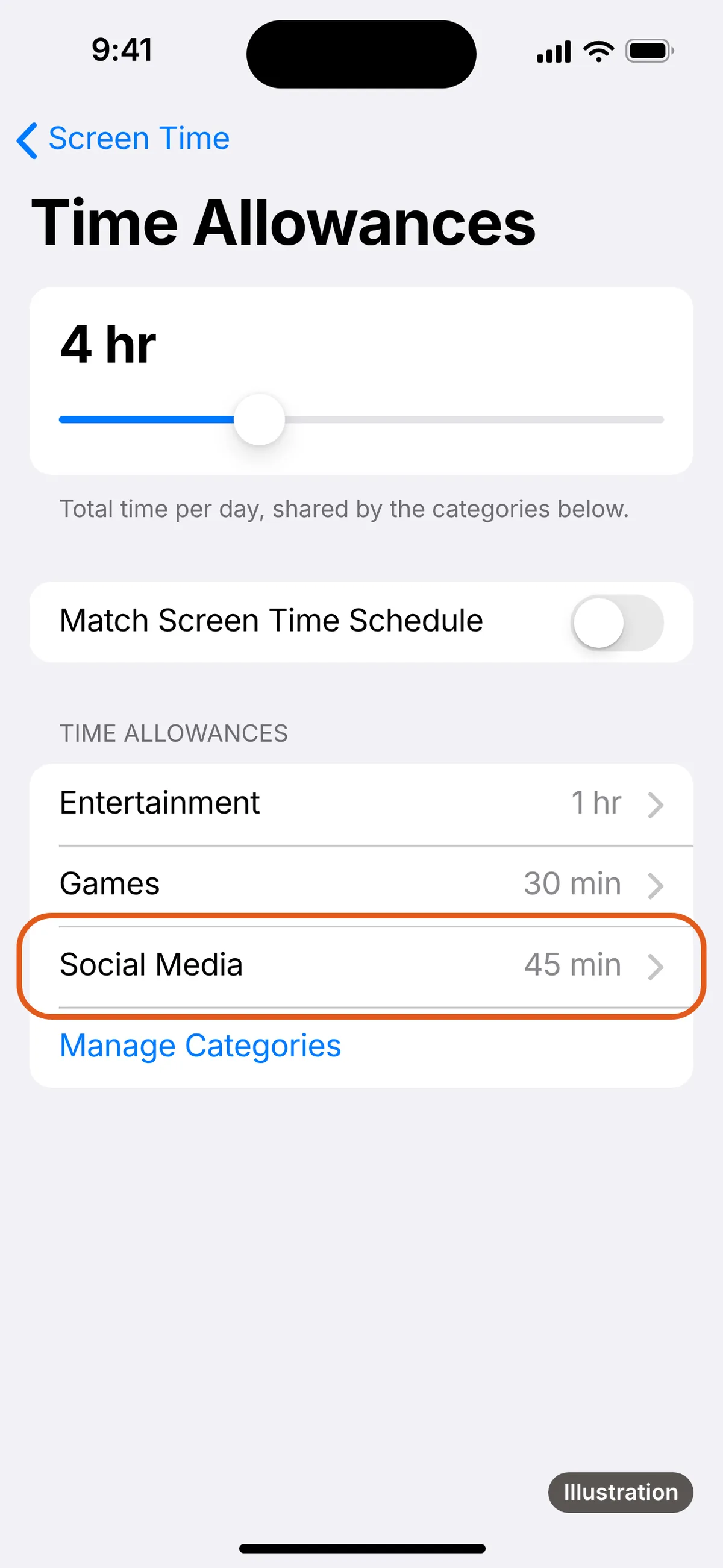
1Open Settings, › Screen Time, › Time Allowances.
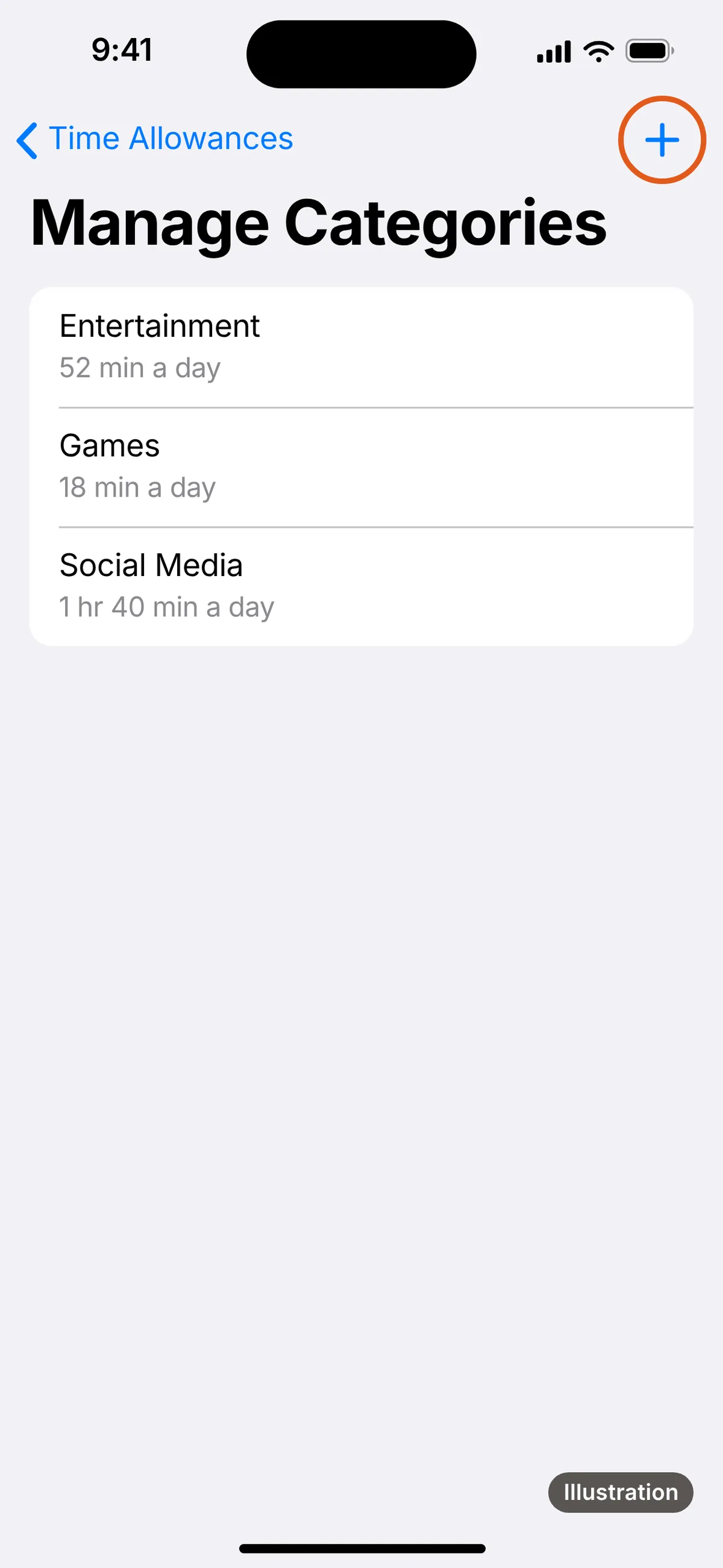
2Tap Manage Categories, open each category and find YouTube in its list. If you also have YouTube Kids or YouTube Music, note where they sit too.
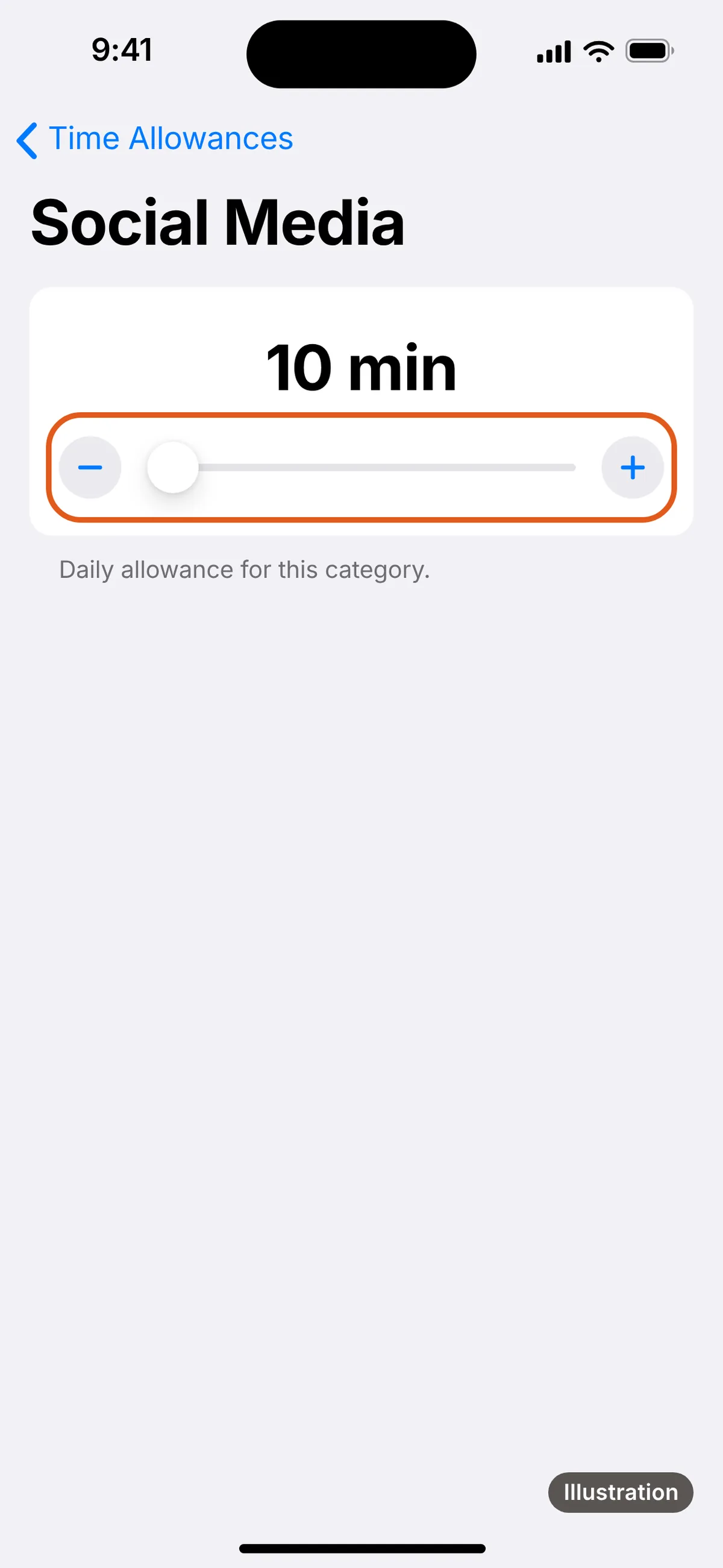
3Go back, tap YouTube’s category and drag the slider down. A few minutes a day is a block; half an hour leaves room for one video.
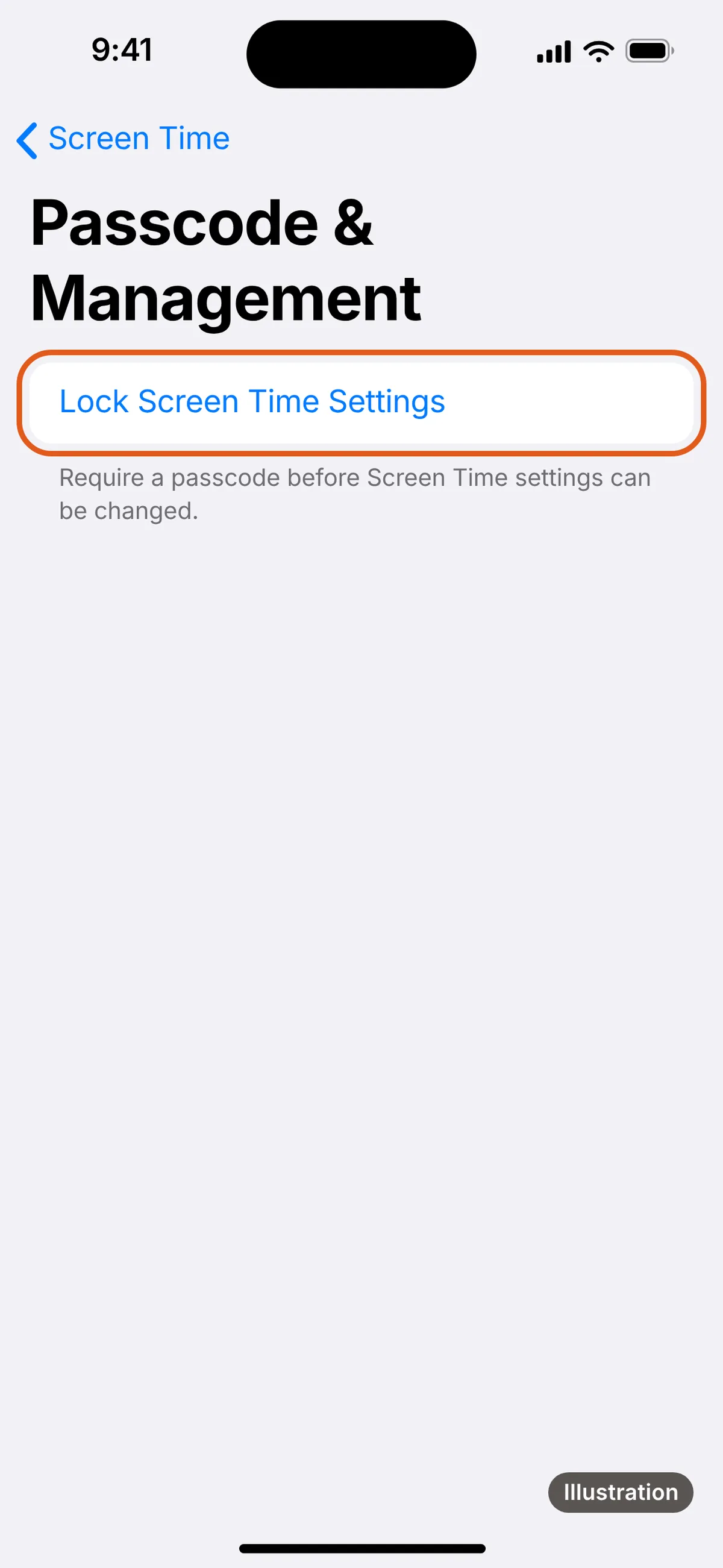
4Lock it with Passcode & Management, › Lock Screen Time Settings, and have someone else choose the four digits.
1Illustration of the iOS 27 Time Allowances screen — recreated, not a screenshot
2Illustration of the iOS 27 Manage Categories screen — recreated, not a screenshot
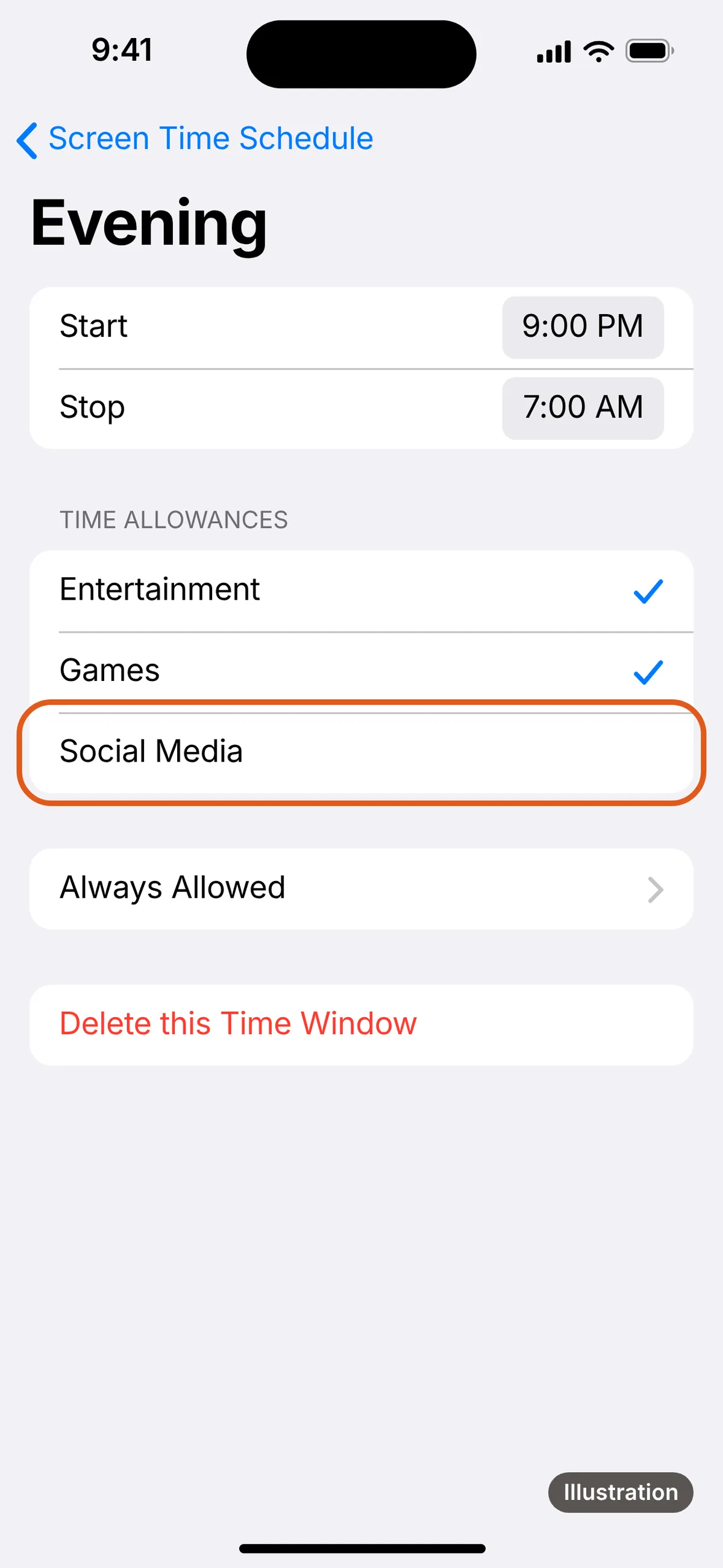
3Illustration of the iOS 27 Social Media allowance screen — recreated, not a screenshot
4Illustration of the iOS 27 Passcode & Management screen — recreated, not a screenshot
1Open Settings, › Screen Time, › App Limits, then tap Add Limit.
2Tap a category name to list its apps, and select YouTube on its own.
3Tap Next and set the time; Customize Days gives school days a different limit.
4Tap Done, then set a Screen Time passcode, or the limit can be ignored once reached.
Apple’s iPad guide for iPadOS 27 uses the same steps and labels as the iPhone guide, so the allowance above works the same on an iPad. You don’t need to set it twice: with one Apple Account on both devices, one switch shares the limit.
One limit for iPad and iPhoneSettings app · iOS 27 and iPadOS 27
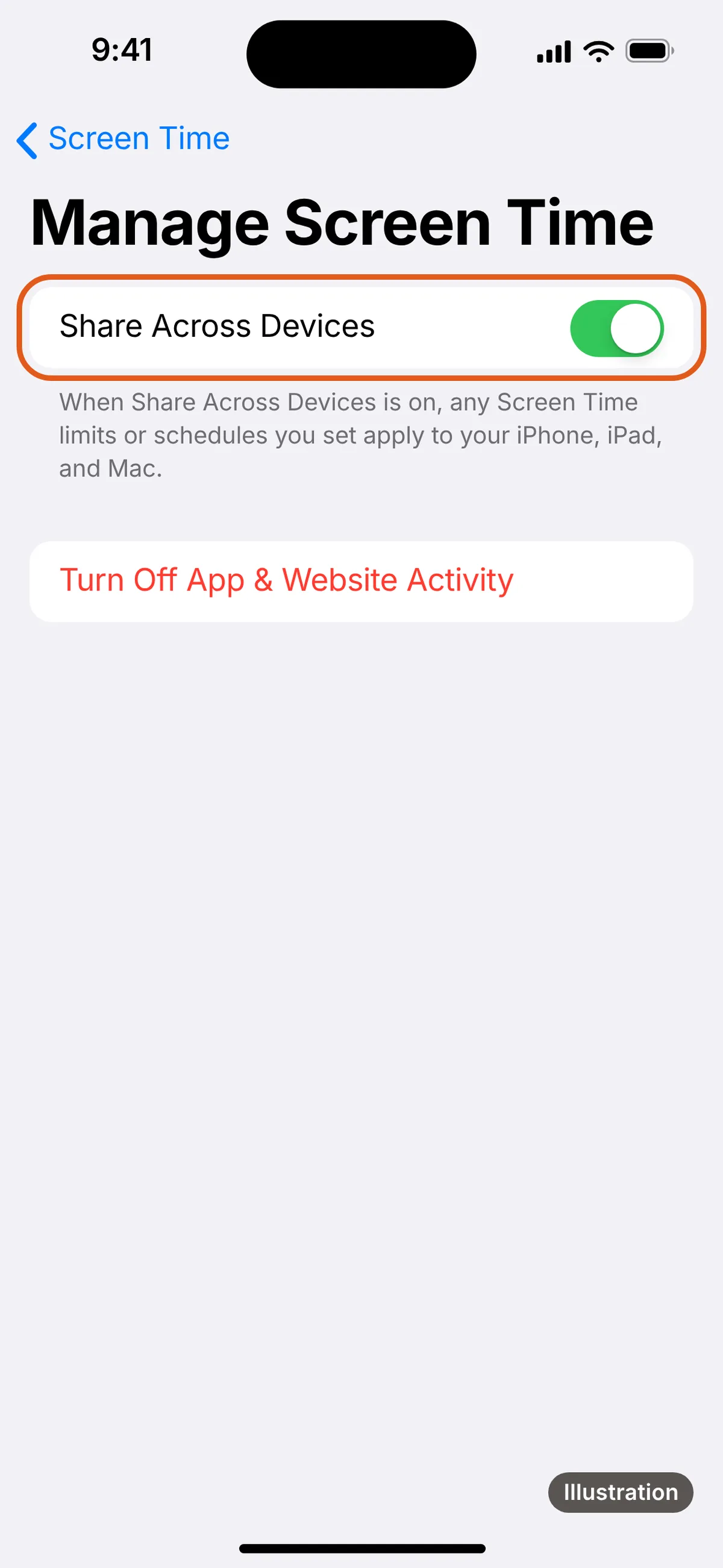
1On the iPhone, open Screen Time, › Manage Screen Time, › Share Across Devices in Settings and turn it on.
2Turn it on on the iPad too, signed in to the same Apple Account.
3On the iPad, open Time Allowances and check YouTube’s category shows the limit you set. Apple: your “Screen Time Schedule, Time Allowances, and usage data are shared across your devices.”
1Illustration of the iOS 27 Manage Screen Time screen — recreated, not a screenshot
1Open Settings, › Screen Time and scroll down to Share Across Devices.
2Turn it on, on each device. With it off, each device keeps its own separate Screen Time settings.
What YouTube leaves out on an iPad
Google lists three of its nudges as phone-only. The take a break reminder and the scheduled notification digest are “only available on mobile phones, not tablets”; the bedtime reminder is “only available on iPhones, not iPads.” Autoplay and Restricted Mode do work on iPad. So on a tablet, Screen Time is the only limit in play.
Two more iPad details. Google Search sends YouTube results on an iPad to the full youtube.com site and on an iPhone to m.youtube.com, which is why both addresses go on the block list below. And the YouTube app needs iPadOS 17 or later; the App Store rates it 13+.
Block YouTube at bedtime
YouTube’s bedtime reminder is iPhone-only and offers Remind Me Again. A time window in Screen Time Schedule that leaves YouTube’s category out closes the app on both devices.
An evening window without YouTubeSettings app · iOS 27
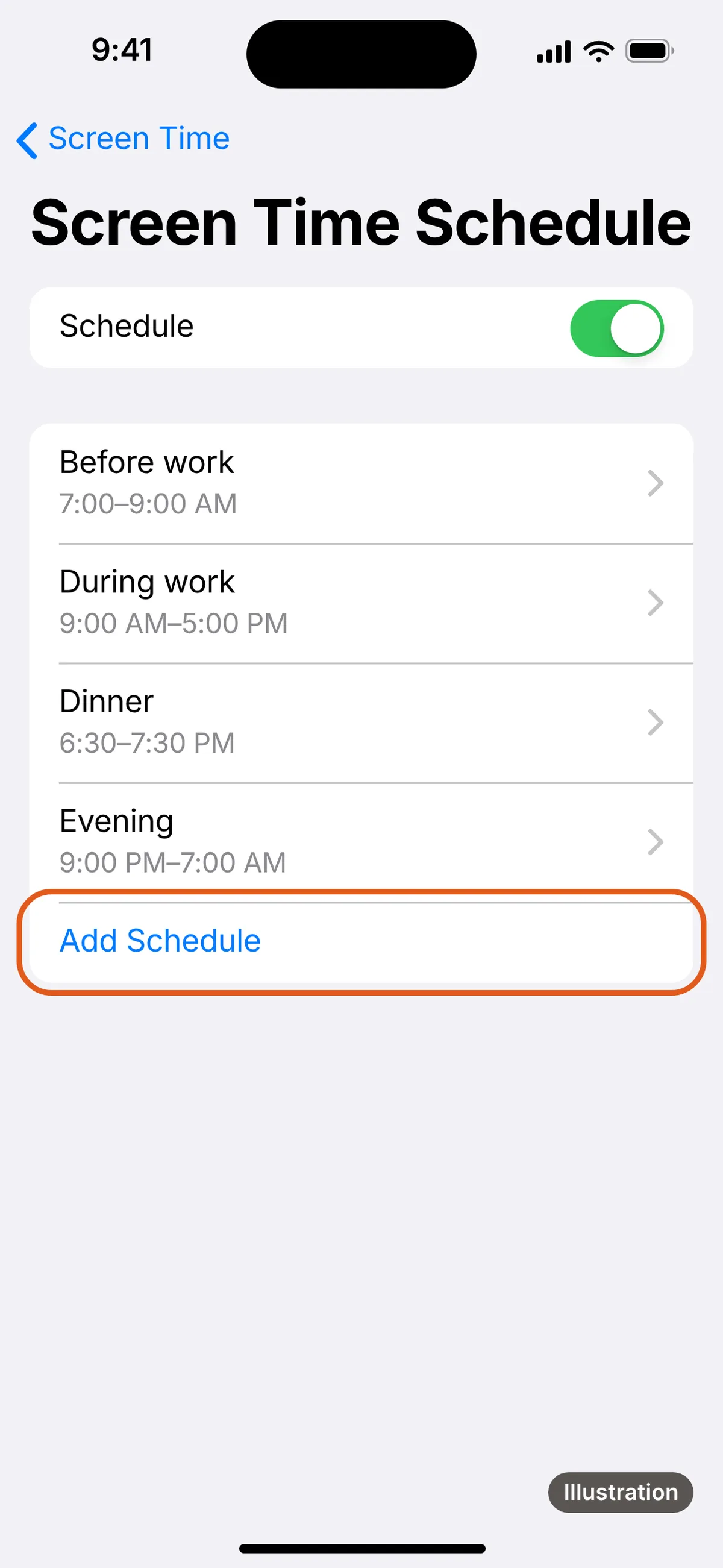
1Open Settings, › Screen Time, › Screen Time Schedule, turn on Schedule, tap Add Schedule and pick the days.
2Tap the Evening window, set when it starts, and leave YouTube’s category unticked.
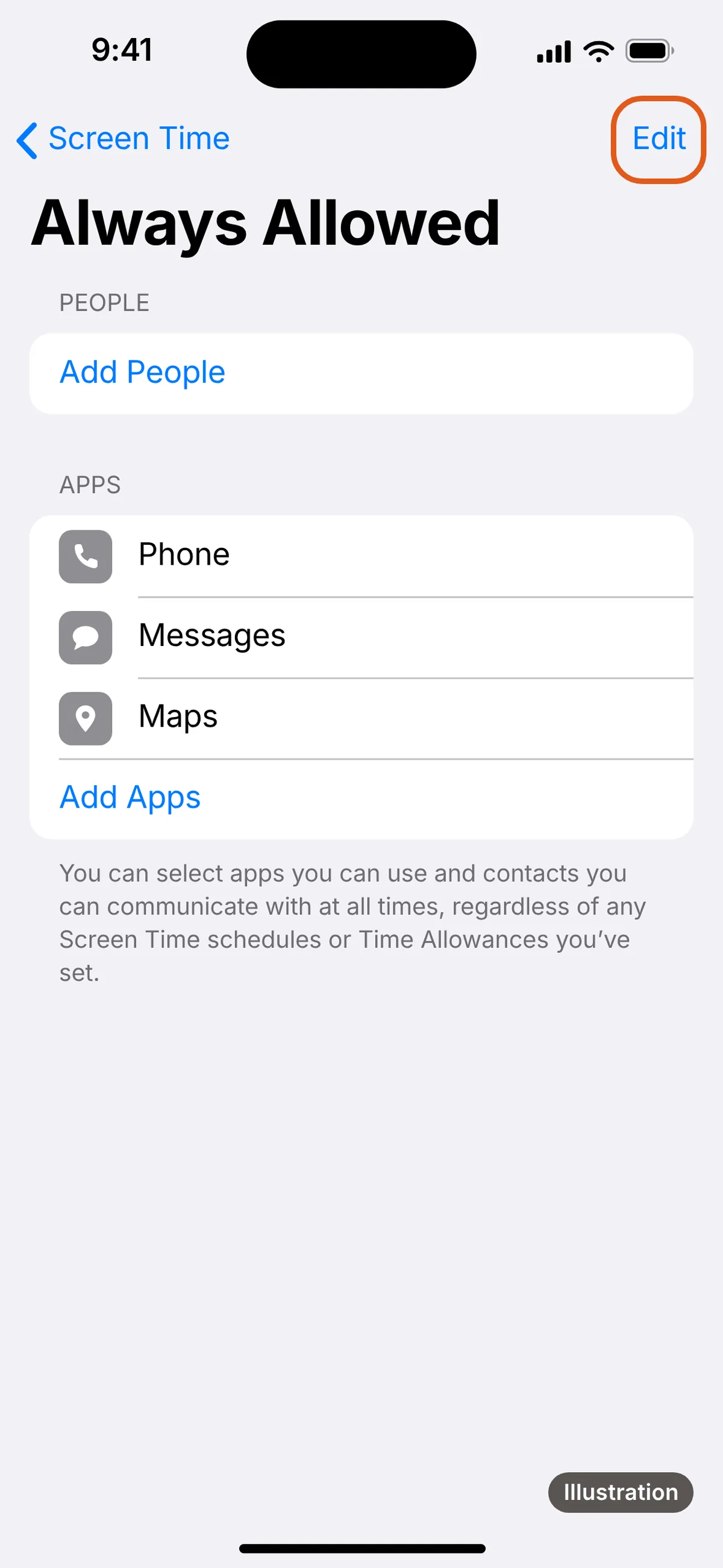
3Open Always Allowed and make sure YouTube isn’t listed.
1Illustration of the iOS 27 Screen Time Schedule screen — recreated, not a screenshot
2Illustration of the iOS 27 Evening time window screen — recreated, not a screenshot
3Illustration of the iOS 27 Always Allowed screen — recreated, not a screenshot
1Open Settings, › Screen Time, › Downtime and turn on Scheduled.
2Choose Every Day or Customize Days and set the hours.
3With a Screen Time passcode set, turn on Block at Downtime, and keep YouTube out of Always Allowed.
Block youtube.com in Safari
Google says YouTube works in a mobile browser without the app: sign in, Home, Subscriptions and Library all work. Google’s list of YouTube hostnames gives the four to block: youtube.com, m.youtube.com for the mobile site, youtu.be for short share links and youtube-nocookie.com for videos embedded on other sites. Leave Google’s shared hosts alone: Google warns things “might not function correctly” if they’re blocked.
Screen Time can block a website by its address, in Safari and other browsers that support it. Apple doesn’t say whether blocking youtube.com also covers m.youtube.com and youtu.be and youtube-nocookie.com, so add each address, then open a YouTube link in Safari to check that it no longer loads.
On iOS 27, Apple documents this for a child’s iPhone only
Apple’s iOS 27 guide for your own iPhone has no website-blocking steps yet. For a child, it’s Settings, › Family, then your child, Apps & Websites, the website and Block Website. On your own iPhone, the closest menu Apple documents is Screen Time, › Apps & Websites: if it lists websites, block the address there. If your iPhone still shows the iOS 26 menus, use the steps below.
On iOS 26: Web Content › Never Allow
Open Settings, › Screen Time, › Content & Privacy Restrictions and turn it on.
Tap App Store, Media, Web, & Games, › Web Content.
Select Limit Adult Websites, tap Add Website under Never Allow and enter youtube.com. Add m.youtube.com, youtu.be and youtube-nocookie.com the same way.
YouTube’s own tools, and where they give way
YouTube’s settings now sit under You (your profile picture, bottom right), and Google’s help pages still give older routes for some. None of them blocks the app; they remind you. The Shorts feed limit is covered on its own page: YouTube Shorts with a zero-minute feed limit.
Remind me to take a break
Everyone, on a phone · on by default for 13–17 · not on iPad
You, › Settings, › Time management
After the interval you pick, the reminder “will pause your video until you dismiss it or resume playing the video”. Older help pages put it under Settings › General.
Gives way:One tap dismisses it, and the timer starts again if you close the app, sign out, switch devices or pause for more than 30 minutes.
A linked parent picks the content setting, sets take a break and bedtime reminders and a daily Shorts feed limit under Time management, and can disable autoplay and autoscroll.
Gives way:For teens, “supervision can be turned off by either a parent or a teen at any time.” A child can still dismiss the bedtime reminder.
The old content settings for supervised kids. Google now calls them Older kids (9+), Teens (13+) and Older teens (16+), so look for those names instead.
Gives way:Under either name they filter what a child sees, not how long they watch.
Manage it from your own iPhone: on iOS 27, open Settings, › Family, tap your child’s name, then Screen Time. With Family Sharing, Apple says the parent “must set the child’s Screen Time passcode on their own device, not the child’s device.” Then add YouTube’s own controls:
YouTube Kids is a separate app with a smaller, curated selection, and it runs on iPadOS 16 or later. Its timer is under Settings (the lock icon) › Set Timer, and the app locks when time runs out.
A supervised account sets what a child sees: Older kids, Teens or Older teens. Restricted Mode filters mature content too, but it’s per device and only locked for under-13s through Family Link.
Guided Access, in Apple’s Accessibility settings, holds the iPad in one app with a passcode and a Time Limit for the session. Triple-click the top button to start it.
Pushtank isn’t a parental control: it’s for blocking yourself. It uses individual authorization, so it can’t be enforced on a child’s device, and deleting it lifts its blocks.
Four ways the YouTube block breaks
The workaroundWhy it worksHow to close it
The limit isn’t locked
Why it works: Apple’s iOS 26 guide: “By default, Screen Time limits can be ignored once reached.” On an iPad there’s no YouTube reminder to fall back on either.
How to close it: Set a Screen Time passcode under Passcode & Management, › Lock Screen Time Settings that someone else chooses.
youtube.com in Safari
Why it works: Google says YouTube works in a mobile browser without the app; only editing and uploading are missing. On an iPad, Google Search sends YouTube results to the full youtube.com site.
How to close it: Block each YouTube address as a website (see below).
The other device
Why it works: Limits set on the iPhone don’t reach the iPad on their own: with Share Across Devices off, “each device has its own Screen Time settings.”
How to close it: Turn on Screen Time, › Manage Screen Time, › Share Across Devices on both, signed in to the same Apple Account.
YouTube Music
Why it works: A separate app, so a limit on YouTube doesn’t count it. Its Samples tab is “an endless, personalized stream of short music video segments”, and YouTube’s Time watched leaves it out.
How to close it: Check which category YouTube Music sits in, and limit that one too.
Which method holds?
Ranked by what it takes to get past each one when one more video sounds fine. Pushtank doesn’t win every row.
Method
To get past it at 11 p.m.
Other devices
What you give up
Screen Time limit, no passcodeSet-up: 2 min
Raise or delete the allowance in Settings. Apple’s iOS 26 guide: “By default, Screen Time limits can be ignored once reached.”
Yes, with Share Across Devices
Nothing, which is why it rarely holds
Screen Time limit + a passcode someone else choseSet-up: 5 min, plus a willing person
Ask them for the four digits
Yes, with Share Across Devices
Asking someone each time; they hold your settings
Screen Time ScheduleSet-up: 3 min
Same as a limit: only a passcode makes it stick
Yes, with Share Across Devices
Every app outside Always Allowed, during those hours
YouTube’s take a break reminderSet-up: 1 min
Tap to dismiss it and the video carries on
Phones only, not tablets
Nothing, and on an iPad it isn’t there at all
A blocker app with a wait or a passwordSet-up: 5 min
Sit out the countdown or type the password; or delete the blocker
Usually this device only
Often a subscription; the password is yours, so it fades
Deleting YouTubeSet-up: 10 s
Reinstall it; your account is still there
No
The app, until you reinstall it; youtube.com still plays
PushtankSet-up: 5 min
A set of push-ups, or 10 min borrowed that you repay. The real escape hatch: deleting Pushtank lifts every block
This iPhone only
Money: nothing, it’s free. youtube.com in a browser isn’t covered, and neither is the iPad
Screen Time limit, no passcode
To get past it at 11 p.m.
Raise or delete the allowance in Settings. Apple’s iOS 26 guide: “By default, Screen Time limits can be ignored once reached.”
Set-up
2 min
Other devices
Yes, with Share Across Devices
What you give up
Nothing, which is why it rarely holds
Screen Time limit + a passcode someone else chose
To get past it at 11 p.m.
Ask them for the four digits
Set-up
5 min, plus a willing person
Other devices
Yes, with Share Across Devices
What you give up
Asking someone each time; they hold your settings
Screen Time Schedule
To get past it at 11 p.m.
Same as a limit: only a passcode makes it stick
Set-up
3 min
Other devices
Yes, with Share Across Devices
What you give up
Every app outside Always Allowed, during those hours
YouTube’s take a break reminder
To get past it at 11 p.m.
Tap to dismiss it and the video carries on
Set-up
1 min
Other devices
Phones only, not tablets
What you give up
Nothing, and on an iPad it isn’t there at all
A blocker app with a wait or a password
To get past it at 11 p.m.
Sit out the countdown or type the password; or delete the blocker
Set-up
5 min
Other devices
Usually this device only
What you give up
Often a subscription; the password is yours, so it fades
Deleting YouTube
To get past it at 11 p.m.
Reinstall it; your account is still there
Set-up
10 s
Other devices
No
What you give up
The app, until you reinstall it; youtube.com still plays
Pushtank
To get past it at 11 p.m.
A set of push-ups, or 10 min borrowed that you repay. The real escape hatch: deleting Pushtank lifts every block
Set-up
5 min
Other devices
This iPhone only
What you give up
Money: nothing, it’s free. youtube.com in a browser isn’t covered, and neither is the iPad
one tapa minute of efforta code you don’t hold
Make YouTube cost push-ups
Pushtank shields YouTube as a whole app; it can’t keep long videos open and close Shorts, so if Shorts are the only problem, use YouTube’s own Shorts feed limit. For the whole app, use a group of its own at the strictest rate, where a minute of tank buys half a minute of video: at the starting rate, 40 push-ups buy 20 min of YouTube. It runs on iPhone only, so the iPad still needs the Screen Time steps above.
1Pick the apps, in groups. Each group drains the tank at its own rate.
2Prop the phone up and do push-ups, squats, plank, or sit-ups, counted by the camera. At the starting rate, one push-up adds 1 min.
3Use the apps. Only the minutes you actually spend in them come out of the tank.
per push-up, at the starting rate
1 min
the most a tank holds
3 h
you can borrow, and repay
10 min
Pushtank’s block screen, word for word
Tank empty
One set of push-ups and this app reopens. No lecture, just the trade.
Do push-upsBorrow 10 min
What it doesn’t do. Pushtank blocks apps, not websites: it doesn’t block anything in Safari, so block the website with Screen Time as well. It’s iPhone only for now. Blocking, the tank and every exercise are free; the only purchase is for opening a duel against someone. And deleting Pushtank lifts every block it set.
Why can’t I find YouTube’s take a break reminder on my iPad?
Because it isn’t there. Google says the take a break reminder and the scheduled notification digest are “only available on mobile phones, not tablets”, and the bedtime reminder only on iPhones. On an iPad, use Screen Time.
Does limiting the YouTube app also block youtube.com?
Only if YouTube declares its website to Apple, and Apple doesn’t say whether it does. YouTube plays fully in Safari, so block each address as well.
Will a limit on my iPhone also block YouTube on my iPad?
Yes, if both use the same Apple Account and Share Across Devices is on: Apple says your “Screen Time Schedule, Time Allowances, and usage data are shared across your devices.” Website blocks are worth checking on each device.
Can Google Family Link limit YouTube on an iPad?
Not its screen time limits: Google says they don’t work when a child signs in to Google apps on iPhone or iPad. Use Apple’s Screen Time for the time, and YouTube’s supervised account for the content.
Does Restricted Mode block YouTube?
No. It screens out potentially mature content and hides comments, and it has to be turned on in each browser and on each device. It sets no time limit.
Can my teen turn off YouTube supervision?
Yes. Google says “supervision can be turned off by either a parent or a teen at any time”, so pair it with Screen Time managed from your own device.
Is there an app that makes you exercise before YouTube opens?
Pushtank, on iPhone: when your tank is empty, its block screen reopens YouTube after a set of push-ups the camera counts. It’s free; only opening a duel is paid.
How this guide is checked: every Apple label comes from Apple’s iPhone and iPad User Guides for iOS 27 and iPadOS 27 (current release iOS 27.2.1, 9 November 2026), read on 21 November 2026; YouTube paths come from Google’s YouTube help centre, read the same day, and the App Store details from Apple’s listing and lookup service that day. The phone screens are recreations drawn from Apple’s wording, not screenshots.
 Michael TournaudFounder of PushtankUpdated 21 November 2026Steps checked against Apple’s iOS 27 guide · YouTube help checked 21 Nov 2026