Instagram’s Daily limit is, in Meta’s own words, a reminder, and no setting turns Reels off. These are the iOS 27 Screen Time steps that actually close the app, the instagram.com addresses to block in Safari, and what Instagram’s own tools still do.
Michael TournaudFounder of PushtankUpdated 21 November 2026Steps checked against Apple’s iOS 27 guide · Meta help checked 21 Nov 2026
This guide is in English only for now.
Illustration, not a screenshot. Pushtank is not affiliated with Instagram or Meta.
Short answer
On iOS 27, open Settings, › Screen Time, › Time Allowances, find the category Instagram sits in, and drag its allowance down to a few minutes. Lock it with a passcode someone else chooses. Then block instagram.com too: its Reels page plays in a browser without logging in, and Instagram’s own Daily limit is only a reminder.
Instagram has no allowance of its own in iOS 27: its minutes count against a category. On the App Store it’s filed under Photo & Video, not Social Networking, yet Apple’s published rule for developers places any app with a social feed under Social Media whatever its store category, so that’s where to look first. Every other app in that category shares the same minutes. When that’s too blunt, the iOS 26 App Limits (the other tab) still pick Instagram on its own.
Limit Instagram with a Time AllowanceSettings app · iOS 27
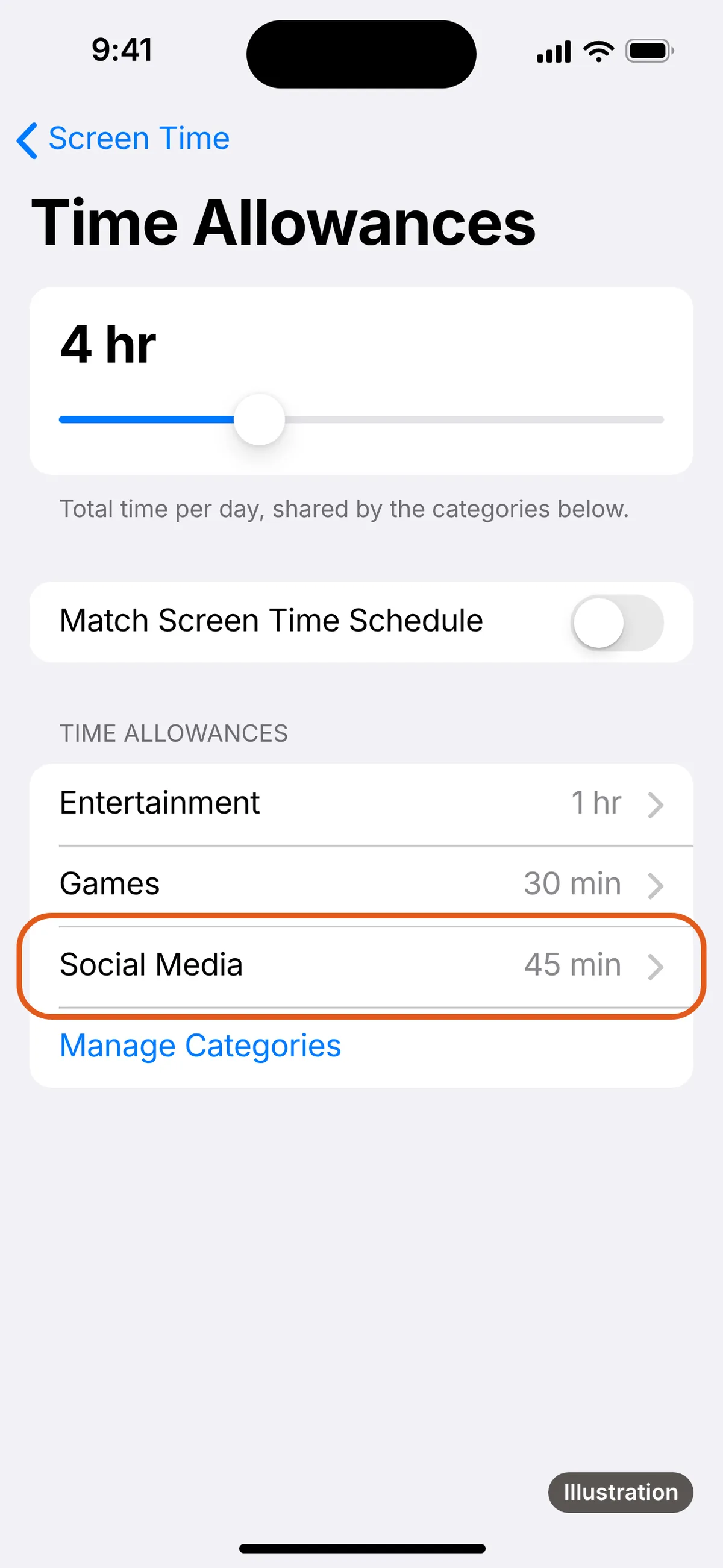
1Go to Settings, › Screen Time, › Time Allowances. The category rows are where Instagram’s minutes will be counted.
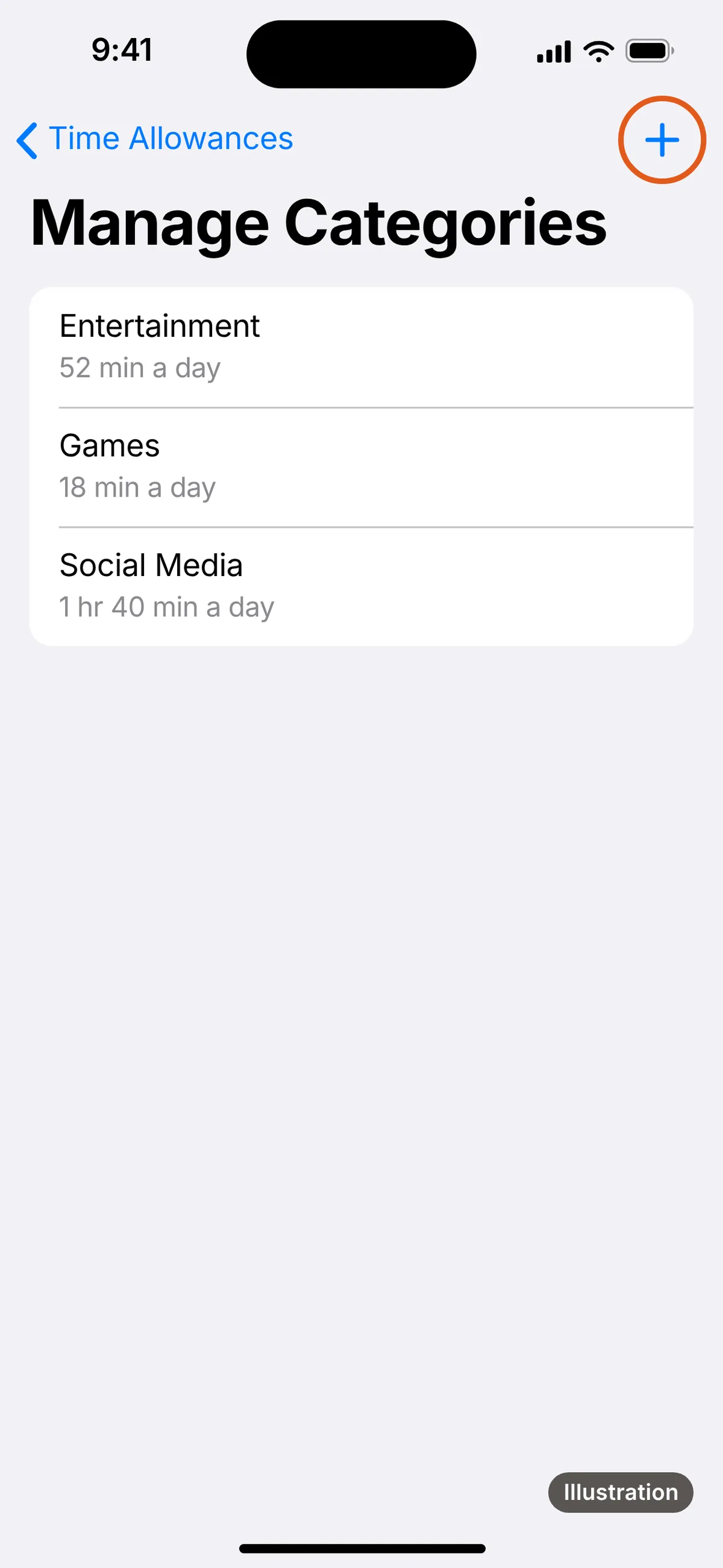
2Tap Manage Categories and open Social Media first: Instagram should be among its apps. If it isn’t, try Entertainment, then the rest.
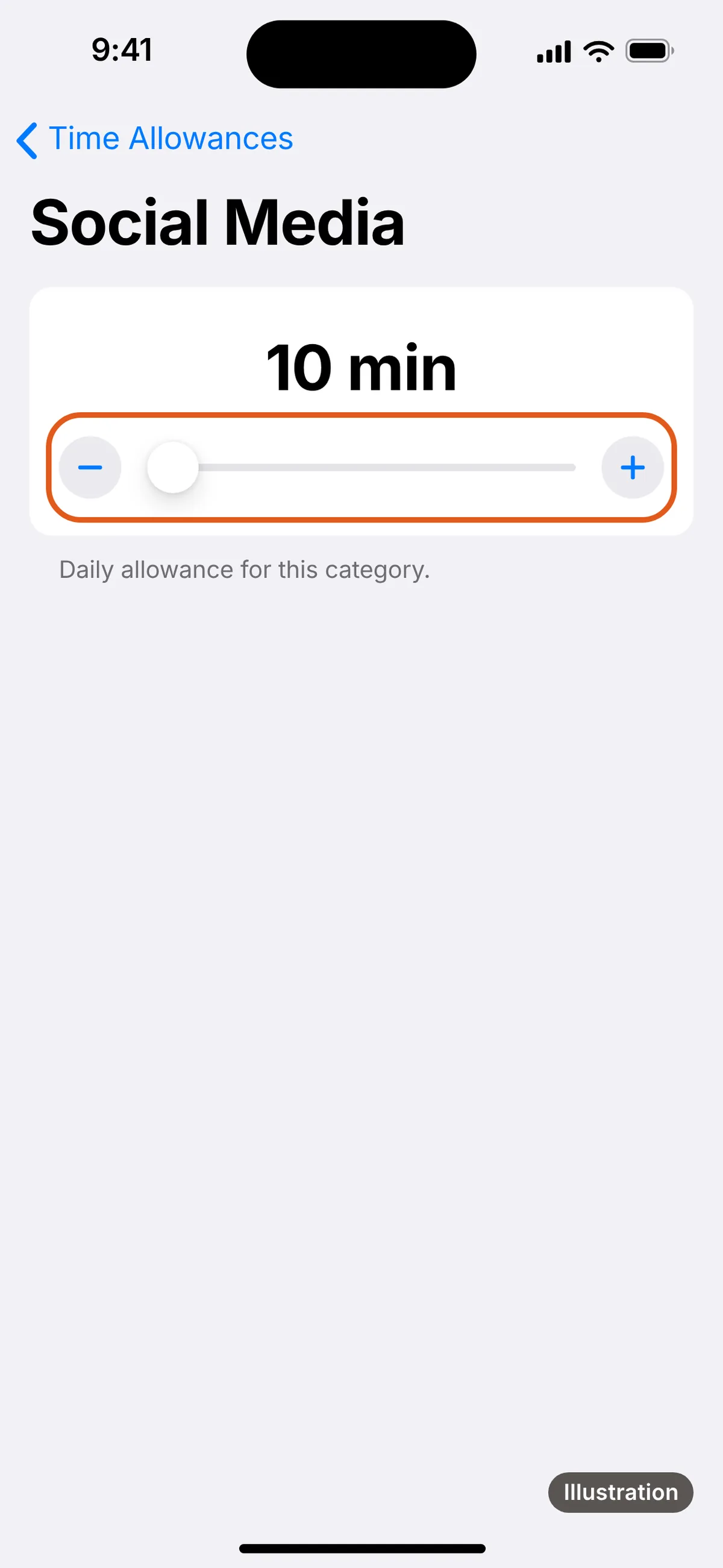
3Return to Time Allowances, open that category and pull the slider towards zero. Fifteen minutes still leaves time for direct messages; five makes the feed pointless.
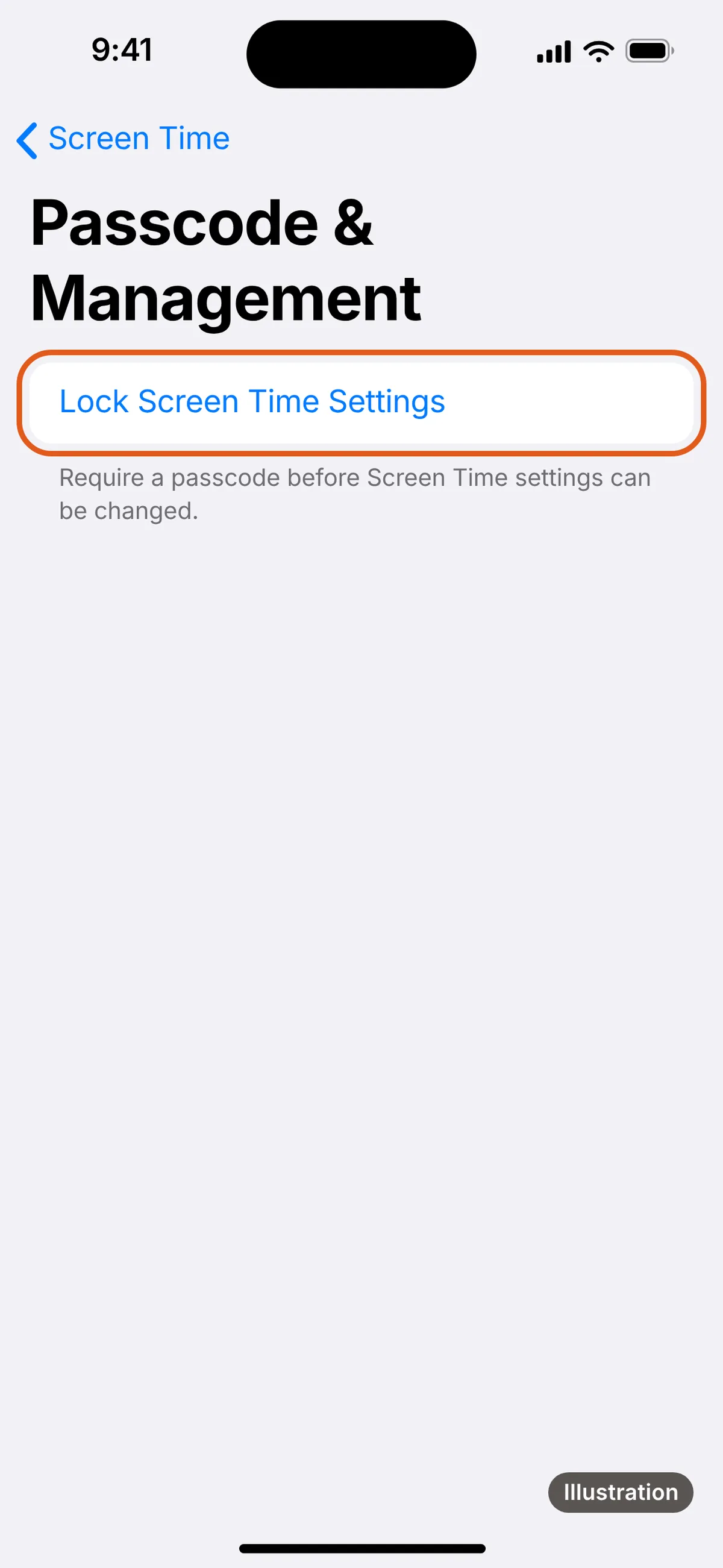
4Have someone else set the code under Screen Time, › Passcode & Management, › Lock Screen Time Settings, so the allowance can’t be raised on a bad evening.
1Illustration of the iOS 27 Time Allowances screen — recreated, not a screenshot
2Illustration of the iOS 27 Manage Categories screen — recreated, not a screenshot
3Illustration of the iOS 27 Social Media allowance screen — recreated, not a screenshot
4Illustration of the iOS 27 Passcode & Management screen — recreated, not a screenshot
1Open Settings, › Screen Time, › App Limits and tap Add Limit.
2Tap a category name to see its apps, then select Instagram. Add Threads too if you use it.
3Tap Next, choose the daily time, and give weekends their own with Customize Days.
4Finish with Done. Without a Screen Time passcode, iOS 26 lets the limit be ignored once it’s reached.
Never set an allowance before? Time Allowances, step by step starts from turning Screen Time on and covers the daily total.
Block Instagram at night
Sleep mode is a do-not-disturb for Instagram: notifications pause and a reminder appears, but Meta says that during it “you can still use Instagram”. To close it overnight, give Screen Time Schedule a late window that doesn’t include Instagram’s category.
A night window without InstagramSettings app · iOS 27
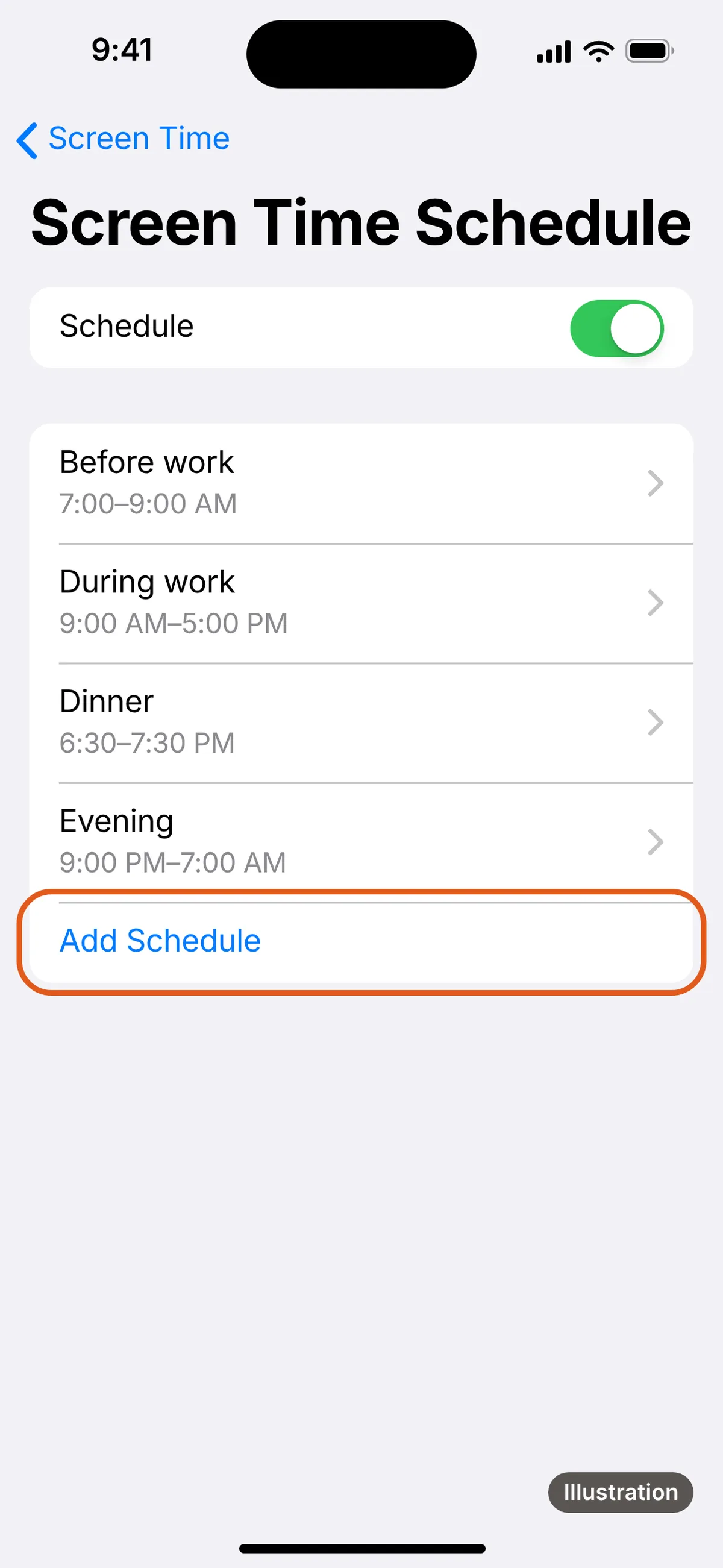
1In Settings, › Screen Time, › Screen Time Schedule, switch Schedule on, tap Add Schedule and pick the nights you want covered.
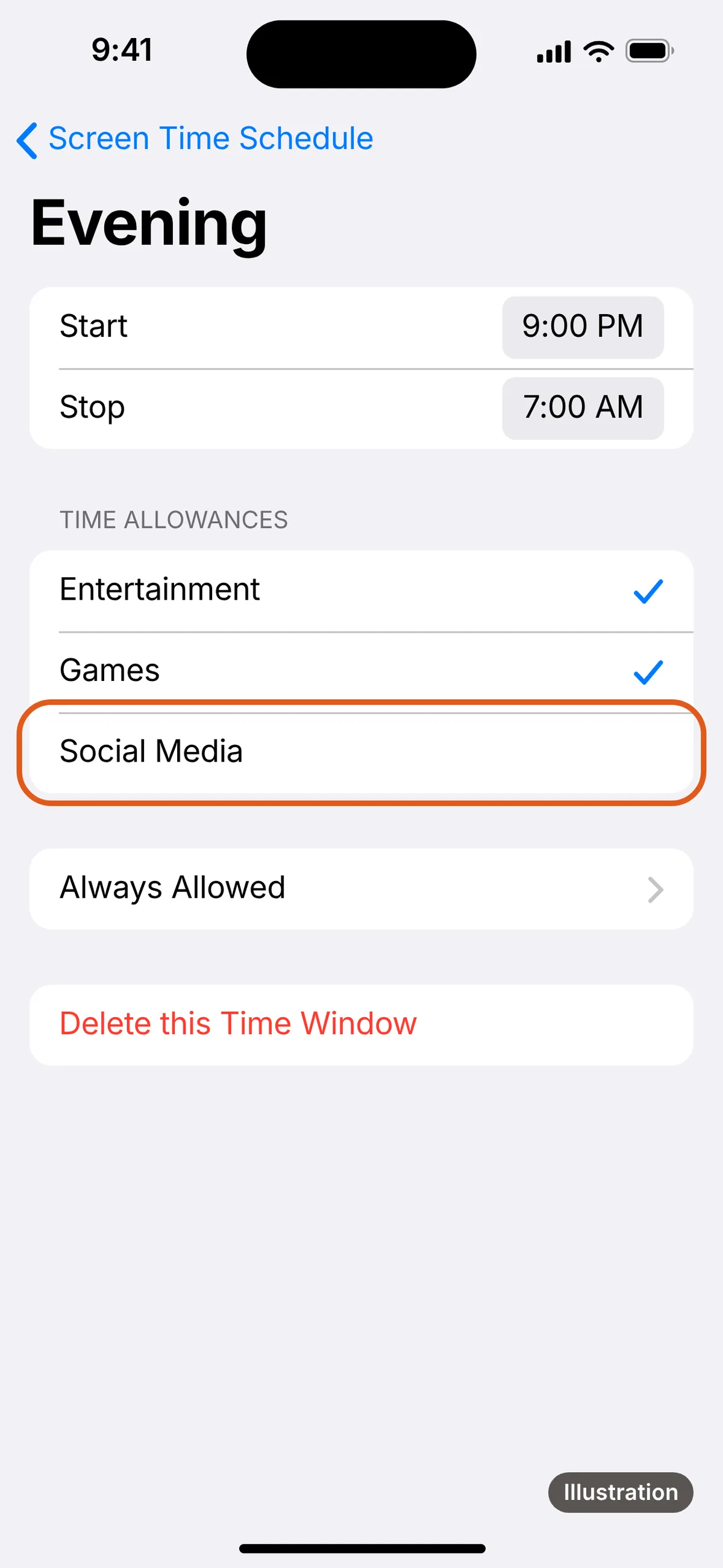
2Open the Evening window, move its start to when you want the feed gone (10 p.m., for example), and untick the category that holds Instagram.
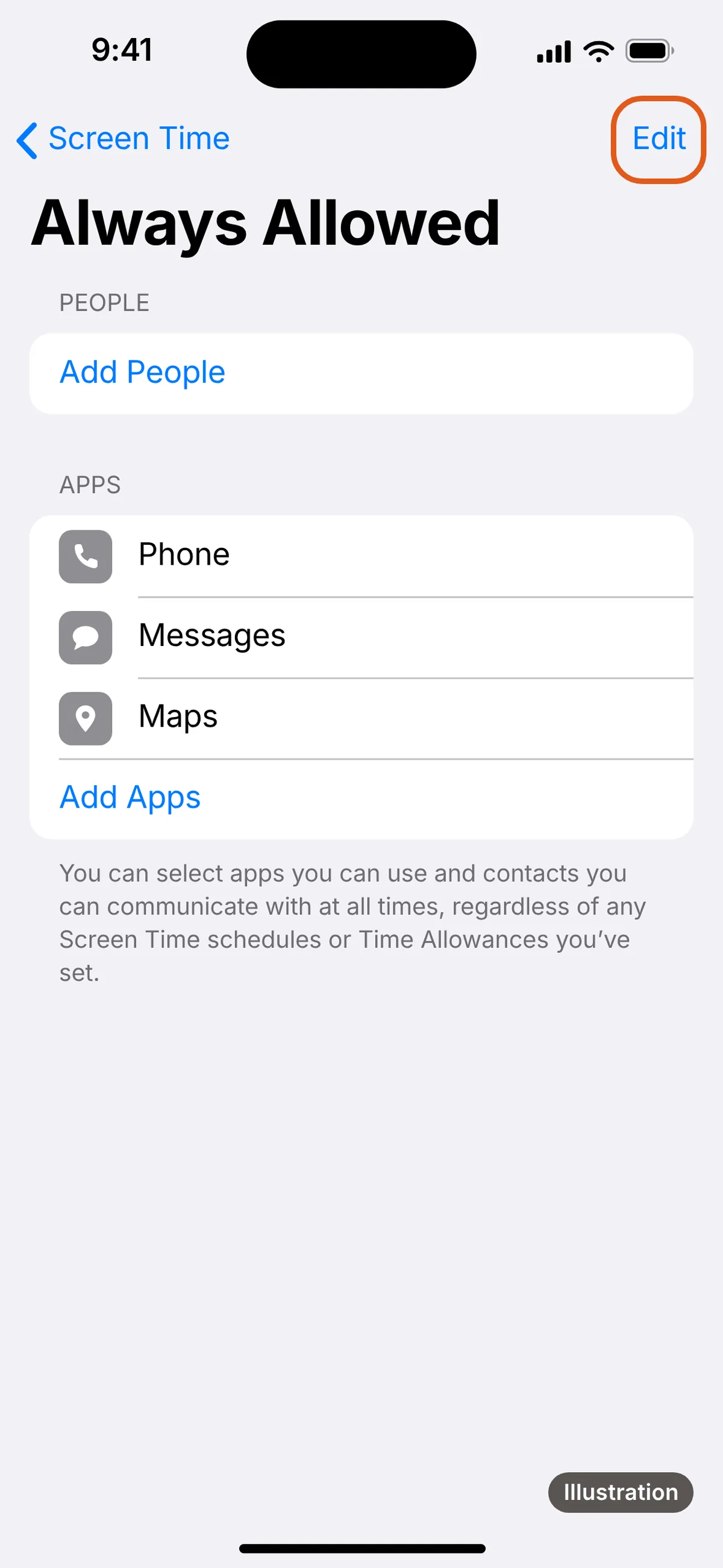
3Open Always Allowed and make sure Instagram isn’t listed. Messages can stay, so people can still reach you.
1Illustration of the iOS 27 Screen Time Schedule screen — recreated, not a screenshot
2Illustration of the iOS 27 Evening time window screen — recreated, not a screenshot
3Illustration of the iOS 27 Always Allowed screen — recreated, not a screenshot
1Go to Settings, › Screen Time, › Downtime and switch on Scheduled.
2Pick Every Day or Customize Days and set when the night starts and ends.
3Set a Screen Time passcode, then switch on Block at Downtime: without it, Downtime only reminds you.
4Remove Instagram from Always Allowed if it’s there.
Block instagram.com in Safari
In our test on 21 November 2026, instagram.com in a mobile browser stopped at a login screen, but instagram.com/reels played a Reels feed, with captions and like counts, without an account. An allowance on the app covers the website only “If an app has an associated website it declares”, and Apple doesn’t list which apps do. So block the addresses themselves: instagram.com, www.instagram.com, where the feed and Reels pages live, and the short instagr.am, which redirects there.
Screen Time can block a website by its address, in Safari and other browsers that support it. Apple doesn’t say whether blocking instagram.com also covers www.instagram.com and instagr.am, so add each address, then open a Instagram link in Safari to check that it no longer loads.
On iOS 27, Apple documents this for a child’s iPhone only
Apple’s iOS 27 guide for your own iPhone has no website-blocking steps yet. For a child, it’s Settings, › Family, then your child, Apps & Websites, the website and Block Website. On your own iPhone, the closest menu Apple documents is Screen Time, › Apps & Websites: if it lists websites, block the address there. If your iPhone still shows the iOS 26 menus, use the steps below.
On iOS 26: Web Content › Never Allow
Open Settings, › Screen Time, › Content & Privacy Restrictions and turn it on.
Tap App Store, Media, Web, & Games, › Web Content.
Select Limit Adult Websites, tap Add Website under Never Allow, and enter instagram.com. Repeat for www.instagram.com and instagr.am.
Instagram’s own time tools, and where they give way
Instagram keeps its time settings under Profile, › Menu, › Time management, and Meta has renamed them over the years: Quiet mode, launched in January 2023, is now Sleep mode. You may also read about “Take a break”, reminders Instagram introduced in December 2021; we found no current help-centre article for it, so it isn’t listed here as a setting to look for. This is what Meta documents today.
Daily limit
Everyone · 1 hour by default on Teen Accounts
Profile, › Menu, › Time management, › Daily limit
Meta calls it a “daily time limit reminder”: it lets you know “when you’ve spent a certain amount of time on Instagram throughout the day.” You choose the amount, from the Time management screen.
Gives way:For an adult it’s only a reminder. Nothing on Meta’s page says it closes the app, and the person who set the time can change it.
Pauses notifications, auto-replies to messages and shows people you’re in sleep mode, for the days and times you choose, up to 24 hours a day. You also see a reminder to close Instagram.
Gives way:Meta says it plainly: “For most people, when you’re in sleep mode, you can still use Instagram and send and receive messages.”
A supervising parent picks the teen, sets a daily limit or sleep-mode hours, and chooses “Remind teen to close Instagram” or “Block teen from Instagram”. It’s the only Instagram setting that actually blocks.
Gives way:No adult can use it on themselves. Teens can ask for more time, and “will still be able to access their Settings even if they’ve reached the time limit.”
Teen Accounts are Instagram accounts for 13–17s, “automatically set to more protective” settings. Instagram’s help centre lists a reminder to close the app after 60 minutes a day and sleep mode from 10 PM to 7 AM. Teens under 16 need a parent’s permission to loosen them; 16- and 17-year-olds can change them unless a parent supervises the account.
How to block Reels on Instagram, and why you can’t quite
Instagram has no setting that turns Reels off, hides the Reels tab or limits Reels apart from the rest of the app. We searched Instagram’s help centre and Meta’s newsrooms on 21 November 2026 and found none. What Meta does document changes *which* Reels you see:
Not interested, from the three-dot menu on a reel or post, tells Instagram “what not to recommend”.
Recommendations reset, added in November 2024, starts suggestions afresh across Explore, Reels and Feed.
Your algorithm: in Reels or Explore, tap the icon in the upper right (two lines with hearts), or find it in Settings and activity, › Content preferences, › Your algorithm. You “tell us what you want to see more or less of”: topics, not time.
None of them sets a limit. The only time-based way to block Reels is to limit Instagram itself, with the Screen Time steps above. Screen Time limits whole apps and categories, not tabs inside them, so a Reels-only block isn’t possible there, and Pushtank, built on the same framework, can’t do it either. YouTube works differently: its Shorts feed limit goes down to zero while the rest of YouTube stays open.
Five ways the block breaks, and how to close each
The workaroundWhy it worksHow to close it
The limit isn’t locked
Why it works: Apple’s iOS 26 guide: “By default, Screen Time limits can be ignored once reached.” With Instagram nothing else catches you, because its own Daily limit is a reminder too.
How to close it: Set a Screen Time passcode under Passcode & Management, › Lock Screen Time Settings that someone else chooses.
instagram.com/reels in a browser
Why it works: On 21 November 2026 we loaded instagram.com in a mobile browser (a test run outside the US). The home page stopped at a login screen, but the Reels page played a feed with no account, behind “Log in” and “Open app” buttons.
How to close it: Block the Instagram addresses as websites (see below). An iOS 27 allowance only covers a website the app declares.
Instagram in Always Allowed
Why it works: Apps in Always Allowed are available “regardless of any Screen Time schedules or Time Allowances you’ve set”, and Instagram’s messages make it a tempting app to keep there.
How to close it: Open Screen Time, › Always Allowed and remove Instagram if it’s there.
Threads, next door
Why it works: Threads is a separate app on the App Store, so an allowance or App Limit set on Instagram alone doesn’t touch it.
How to close it: Look for Threads in Manage Categories and limit its category too, or add it to the same iOS 26 App Limit.
Delete, reinstall, carry on
Why it works: Reinstalling takes a minute, and your account and posts are still there when you sign back in.
How to close it: Have someone else hold the Screen Time passcode, and use it to stop apps being deleted.
The passcode and the setting that stops deleted apps coming back work the same for every app we cover, with the iOS 26 equivalents.
Which method holds?
Ranked by what it takes to get past each one at 11 p.m. For an adult, Instagram’s own row is the easiest to ignore, and Pushtank doesn’t win every row.
Method
To get past it at 11 p.m.
Other devices
What you give up
Screen Time limit, no passcodeSet-up: 2 min
Raise or delete the allowance in Settings. Apple’s iOS 26 guide: “By default, Screen Time limits can be ignored once reached.”
Yes, with Share Across Devices
Nothing, which is why it rarely holds
Screen Time limit + a passcode someone else choseSet-up: 5 min, plus a willing person
Ask them for the four digits
Yes, with Share Across Devices
Asking someone each time; they hold your settings
Screen Time ScheduleSet-up: 3 min
Same as a limit: only a passcode makes it stick
Yes, with Share Across Devices
Every app outside Always Allowed, during those hours
Instagram’s Daily limitSet-up: 1 min
Nothing to get past: it’s a reminder. Keep scrolling, or change the time
Set inside Instagram
Nothing. For adults it never closes the app
A blocker app with a wait or a passwordSet-up: 5 min
Sit out the countdown or type the password; or delete the blocker
Usually this device only
Often a subscription; the password is yours, so it fades
Deleting InstagramSet-up: 10 s
Reinstall it; your account is still there
No
Instagram entirely, until you reinstall it. Threads stays
PushtankSet-up: 5 min
A set of push-ups, or 10 min borrowed that you repay. The real escape hatch: deleting Pushtank lifts every block
This iPhone only
Money: nothing, it’s free. instagram.com in a browser isn’t covered
Screen Time limit, no passcode
To get past it at 11 p.m.
Raise or delete the allowance in Settings. Apple’s iOS 26 guide: “By default, Screen Time limits can be ignored once reached.”
Set-up
2 min
Other devices
Yes, with Share Across Devices
What you give up
Nothing, which is why it rarely holds
Screen Time limit + a passcode someone else chose
To get past it at 11 p.m.
Ask them for the four digits
Set-up
5 min, plus a willing person
Other devices
Yes, with Share Across Devices
What you give up
Asking someone each time; they hold your settings
Screen Time Schedule
To get past it at 11 p.m.
Same as a limit: only a passcode makes it stick
Set-up
3 min
Other devices
Yes, with Share Across Devices
What you give up
Every app outside Always Allowed, during those hours
Instagram’s Daily limit
To get past it at 11 p.m.
Nothing to get past: it’s a reminder. Keep scrolling, or change the time
Set-up
1 min
Other devices
Set inside Instagram
What you give up
Nothing. For adults it never closes the app
A blocker app with a wait or a password
To get past it at 11 p.m.
Sit out the countdown or type the password; or delete the blocker
Set-up
5 min
Other devices
Usually this device only
What you give up
Often a subscription; the password is yours, so it fades
Deleting Instagram
To get past it at 11 p.m.
Reinstall it; your account is still there
Set-up
10 s
Other devices
No
What you give up
Instagram entirely, until you reinstall it. Threads stays
Pushtank
To get past it at 11 p.m.
A set of push-ups, or 10 min borrowed that you repay. The real escape hatch: deleting Pushtank lifts every block
Set-up
5 min
Other devices
This iPhone only
What you give up
Money: nothing, it’s free. instagram.com in a browser isn’t covered
one tapa minute of efforta code you don’t hold
Make Instagram cost push-ups
Instagram’s Daily limit tells you the time is up and leaves the door open. Pushtank puts a price on the door: put Instagram in a group at the normal rate, where a minute in the app takes a minute of tank, and an hour of scrolling costs 60 push-ups at the starting rate. It shields the whole app, though, never Reels alone: Screen Time hands blockers whole apps, not the tabs inside them, so your messages close with the feed.
1Pick the apps, in groups. Each group drains the tank at its own rate.
2Prop the phone up and do push-ups, squats, plank, or sit-ups, counted by the camera. At the starting rate, one push-up adds 1 min.
3Use the apps. Only the minutes you actually spend in them come out of the tank.
per push-up, at the starting rate
1 min
the most a tank holds
3 h
you can borrow, and repay
10 min
Pushtank’s block screen, word for word
Tank empty
One set of push-ups and this app reopens. No lecture, just the trade.
Do push-upsBorrow 10 min
What it doesn’t do. Pushtank blocks apps, not websites: it doesn’t block anything in Safari, so block the website with Screen Time as well. It’s iPhone only for now. Blocking, the tank and every exercise are free; the only purchase is for opening a duel against someone. And deleting Pushtank lifts every block it set.
No setting does it. “Not interested”, a recommendations reset and Your algorithm change which Reels you see, not whether they appear or for how long. To limit Reels, limit Instagram.
Does Instagram’s daily limit block the app?
Not for adults: Meta calls it a “daily time limit reminder”. Teen Accounts start with a 1-hour limit, and only a supervising parent can choose “Block teen from Instagram”.
What happened to Quiet mode on Instagram?
It’s now called Sleep mode, under Time management. It pauses notifications and reminds you to close the app, but Meta says you “can still use Instagram” during it.
Why does Instagram still work in Safari when the app is limited?
An iOS 27 allowance covers a website only if the app declares it. In our test, instagram.com/reels played without logging in, so block the Instagram addresses as well.
Does blocking Instagram also block Threads?
No. Threads is a separate app, so a limit set on Instagram alone doesn’t cover it. Check which category Threads sits in and limit that too.
Is Instagram Lite on the iPhone App Store in the US?
No. On 21 November 2026, searching the US App Store for it returned Instagram, Threads and Facebook, and no Lite app.
Is there an app that makes you do push-ups before Instagram opens?
Pushtank: when your tank is empty, its block screen reopens Instagram after a set of push-ups the camera counts. It shields the whole app, not Reels alone. It’s free; only opening a duel is paid.
How this guide is checked: every Apple label comes from Apple’s iPhone User Guide for iOS 27 (current release iOS 27.2.1, 9 November 2026), read on 21 November 2026; Instagram paths and quotes come from Instagram’s help centre and Meta’s newsroom, read the same day from outside the US, so the US app may word a screen differently. The phone screens are recreations drawn from Apple’s wording, not screenshots, and we don’t show Instagram’s own screens. The instagram.com test ran in a mobile browser that day.
 Michael TournaudFounder of PushtankUpdated 21 November 2026Steps checked against Apple’s iOS 27 guide · Meta help checked 21 Nov 2026